5: Local Testing - Weapons
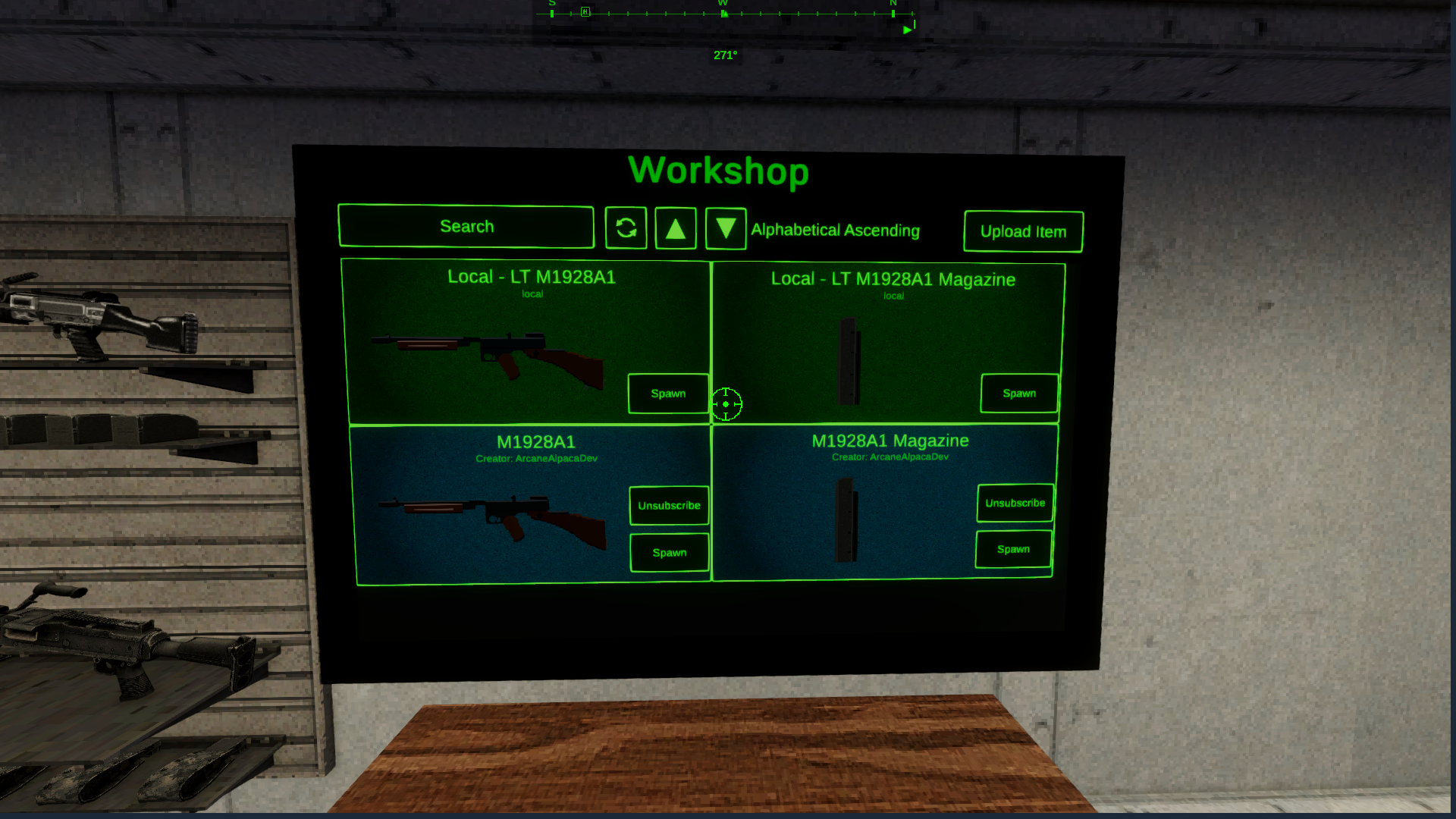
You can test your custom weapons locally before uploading by placing them into a testing folder in your local user files. In the game local weapons will be displayed in the Workshop menu and can be spawned just like any other Workshop weapon. Local testing is only available in single player.
Navigate to the user data folder: C:\Users\<username>\AppData\LocalLow\Arcane Alpacas\Dagger Directive
Check to see if you already have the local testing folders.
LocalWeaponTesting
LocalMagazineTesting
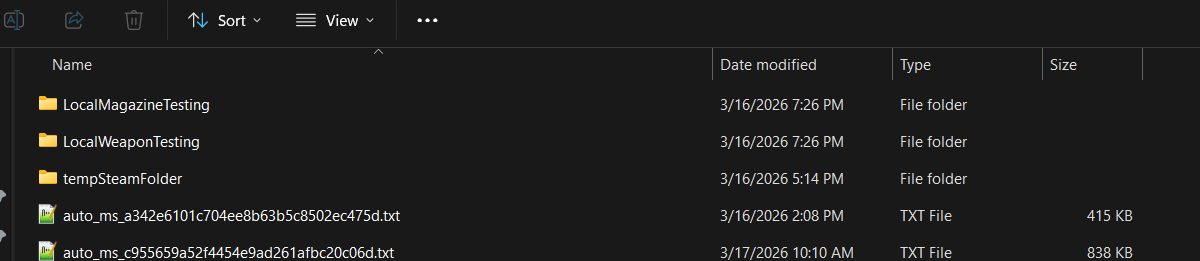
If not, you can create them yourself. Make sure the folder name matches exactly. Or open the game, load into single player, and return to the ship. The Workshop menu will create the folder for you.
Next copy all of your assets into the `LocalWeaponTesting` folder.
There are naming requirements for the assets.
Config File - `Config.json`
Fire sound effect - `FireEvent.wav`
Inventory Icon - `Inventory_Icon.png`
Inventory Icon Outline - `Inventory_Icon_Outline.png`
Model File - `Model.fbx`
Texture File - `Texture.png`
Emission File (optional) - `Texture_Emission.png`
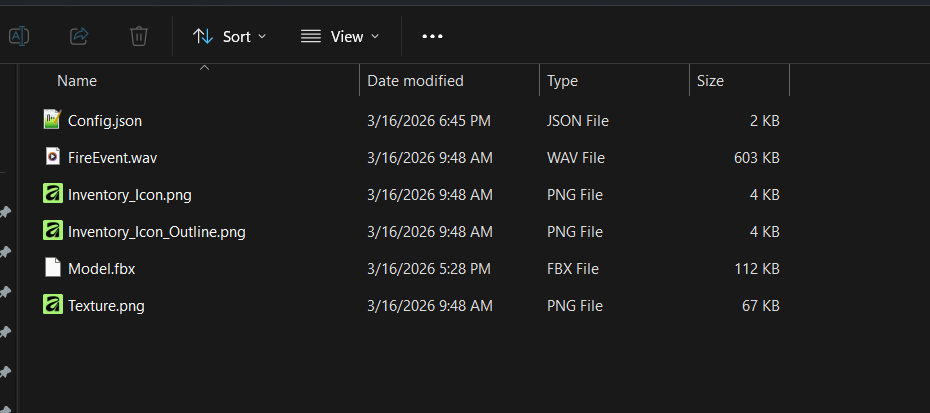
Once you have placed all of the assets in the local testing folder and made sure they are named correctly you can restart the game and your weapon should be in the Workshop!
You can update these files at runtime too. Simply make the change, click “Spawn”, and test out your changes on the new instance of the weapon.