
4: Config File
Editing the config file can be done in one of two ways; in a text file or inside the game through the UI. We’ll go over the main way which is inside the game using the UI. Editing the text file is fine too but you just need to be careful to keep the formatting correct. You’ll also need to know what the settings are.
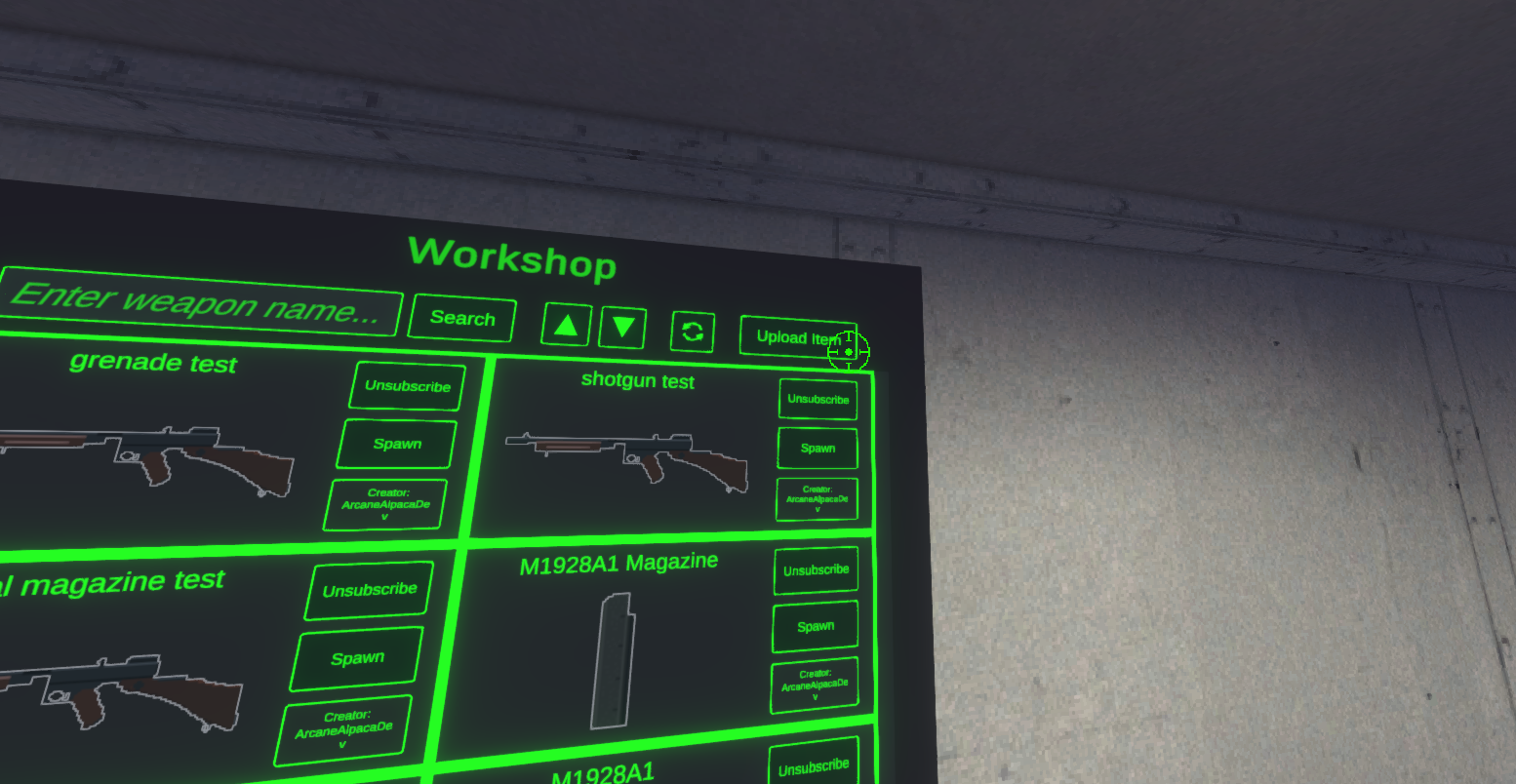
Start by opening the game and make your way to the Custom Content menu in the Armory. Select “Upload Item” at the top.
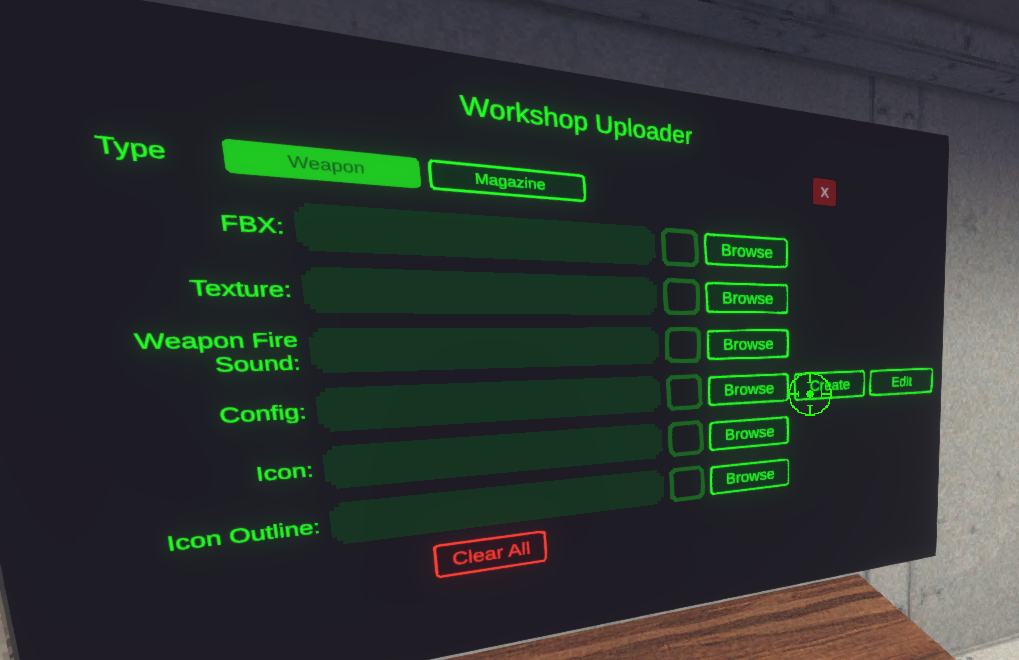
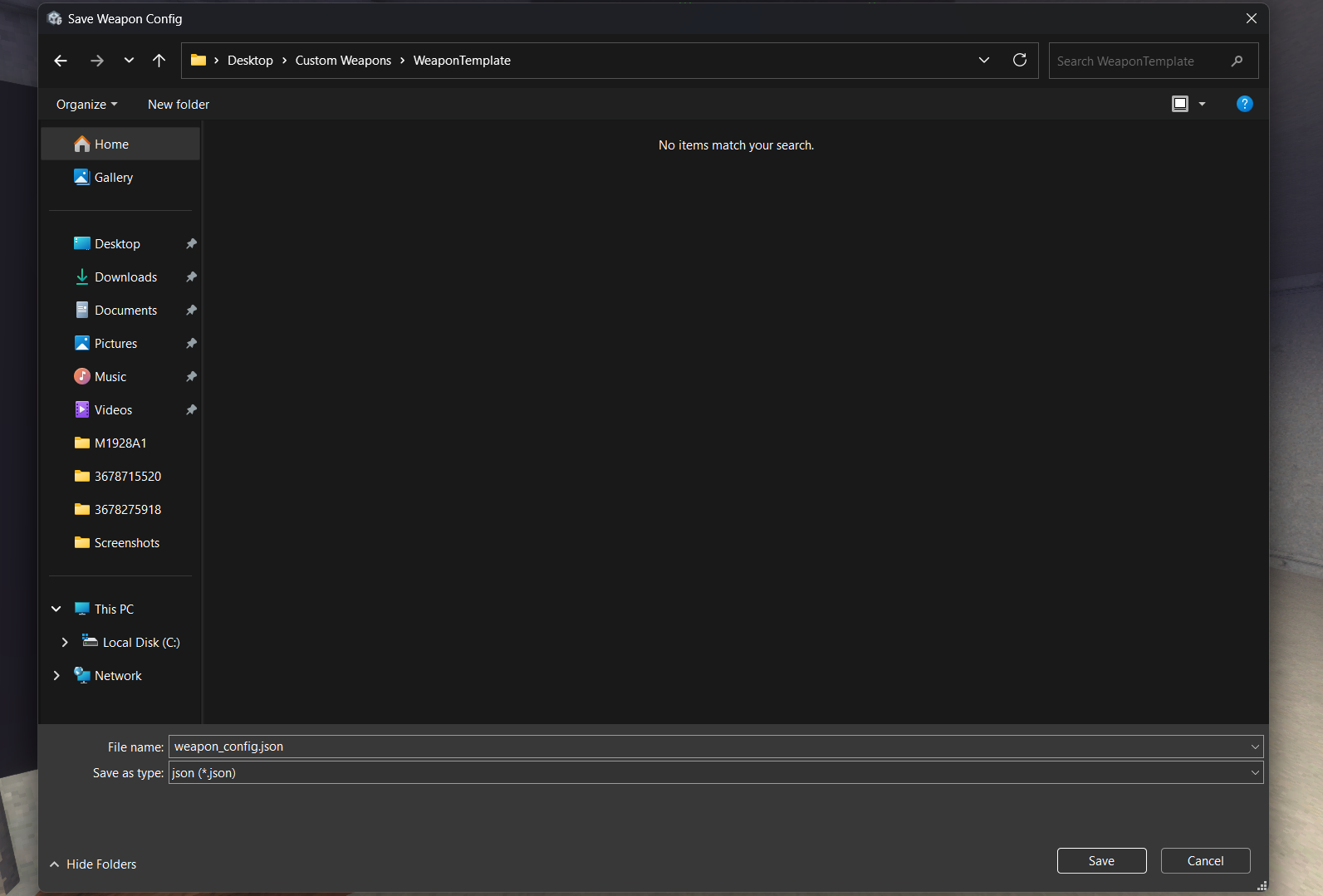
Next select the type “Weapon” and then click “Create”. This will open a window for you to save the config file to your PC. Choose a location and click “Save”
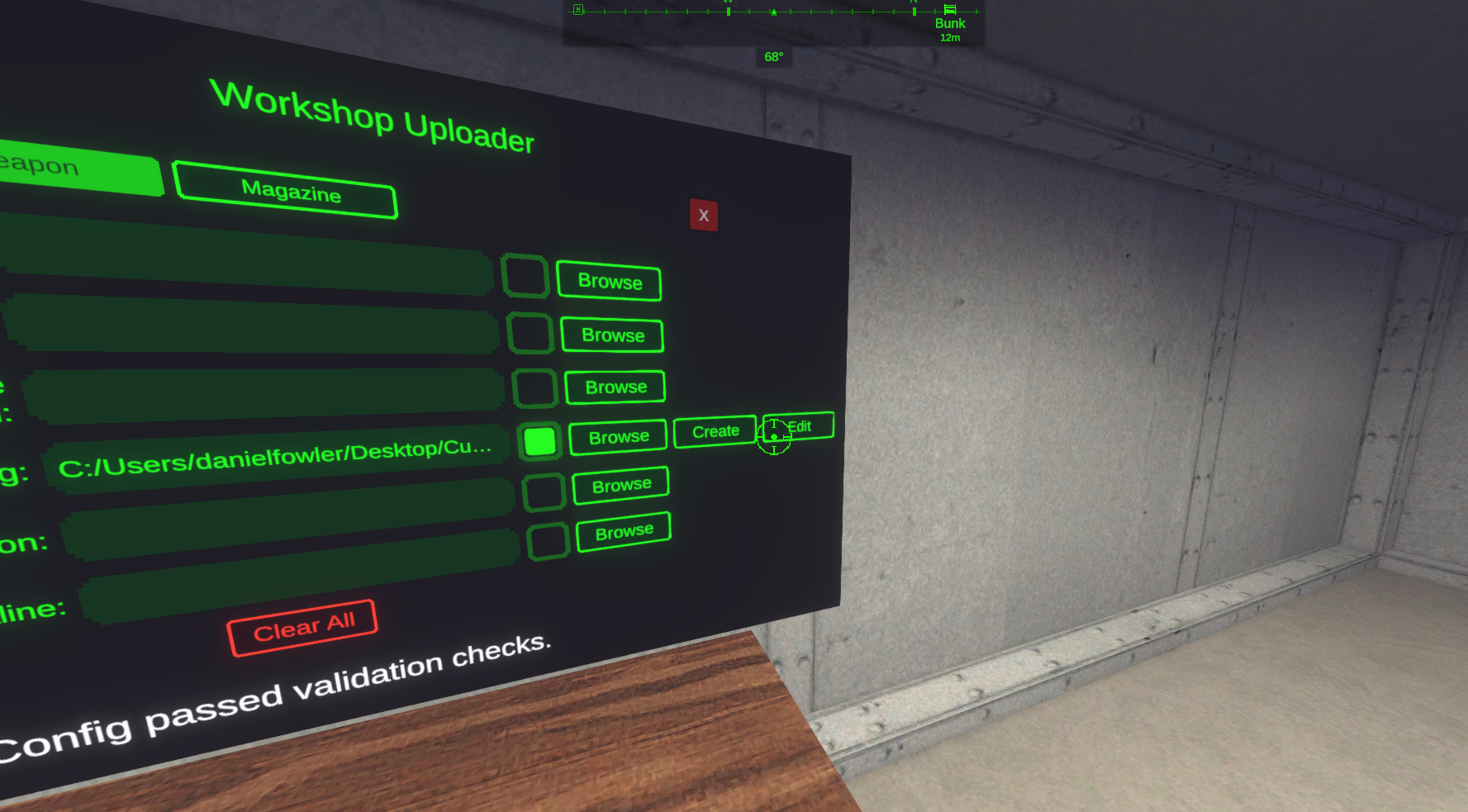
You should now see the file path. Next click “Edit” to open the config Editor Window.
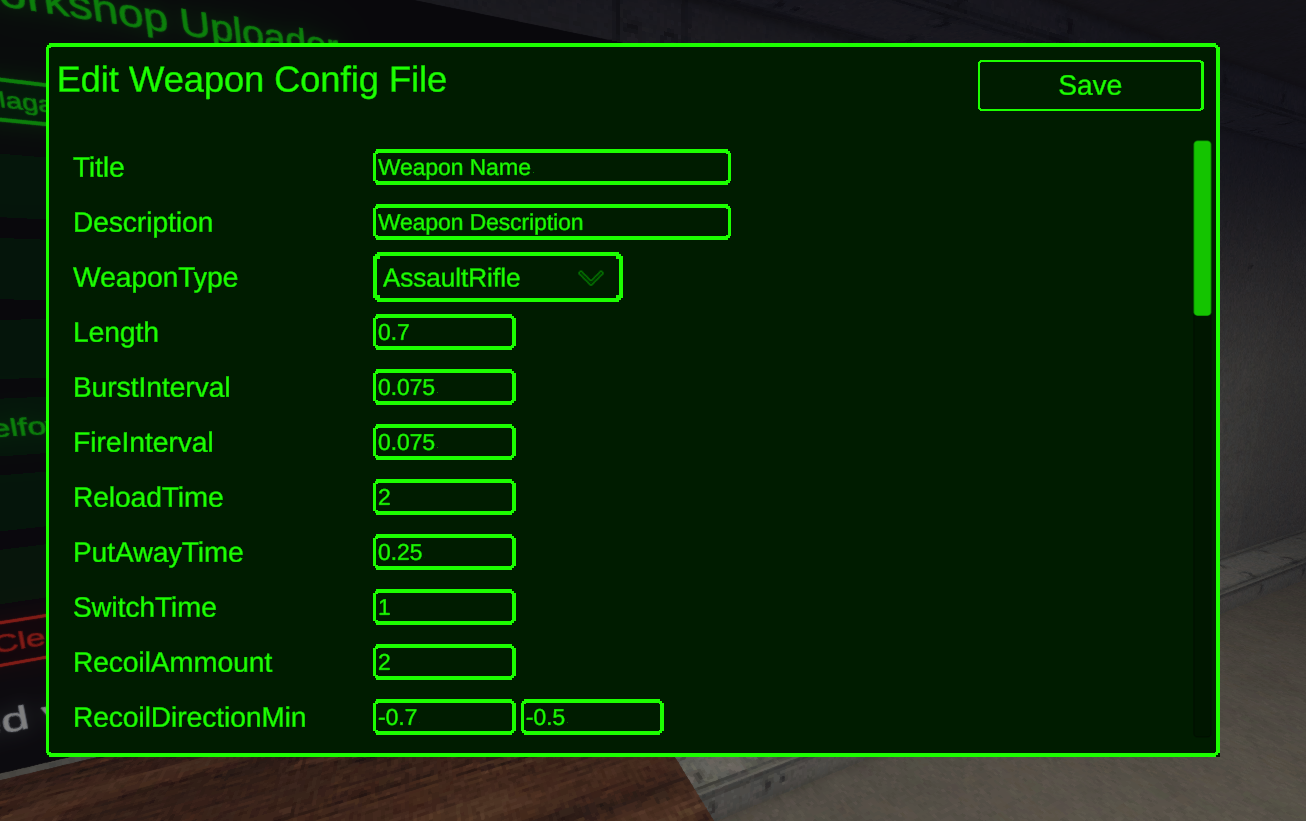
We’ll now go through what each of the fields is used for. You can create a config that doesn’t work and we’ve added some validation for most of the big issues. However we didn’t want to add too many restrictions to what you can and cannot do. So if your weapon is not working, mess with the settings, review the guide, and keep trying. You can even edit the config at runtime so iterating is fairly quick. We’ll go over iterating later.
Weapon Config Fields
Title - The name of the weapon
Description - The text in the inventory to describe the weapon to players.
WeaponType - This is used for a number of things. Just choose the one that best represents the weapon you are creating. Not all of them are applicable for custom weapons.
Your options are:
AssaultRifle - a rifle such as the M-16 or AKM
LightMachineGun - Weapons like the M249 or PKM
Launcher - Rocket launchers or grenade launchers
Shotgun - weapons like the SPAS-12 or Jackhammer
SniperRifle - weapons like the M-21 or SVD
Grenade - N/A
Explosive - N/A
Pistol - M-9 or Makarov
Knife - N/A
SubMachineGun - MP5 or M10
BattleRifle - FN FAL or H&K G3
Scope - N/A
Attachment - N/A
Suppressor - N/A
Shell - N/A
Magazine - N/A
Round - N/A
DroneController - N/A
Drone - N/A
Length - the size of the weapon from stock to muzzle. This is used for wall detection to prevent clipping.
BurstInterval - time in seconds between shots when using burst fire.
FireInterval - time in seconds between shots during semi automatic or automatic fire.
ReloadTime - Time in seconds it takes to reload the weapon using a standard reload. Speed reloads use a fraction of this time.
PutAwayTime and SwitchTime are additive. So if you have a pistol that takes 1 second to holster and are taking out a rifle that takes 2 seconds to equip the total time of 3 seconds is what the players will feel.
PutAwayTime - time in seconds it takes to return a weapon to the inventory when swapping weapons.
SwitchTime - time in seconds when taking the item out of the inventory.
Recoil is done by angling the weapon up at various angles after each shot. The amount is multiplied in to the Recoil Direction which is chosen at random between the Min and Max values. Higher numbers will increase the muzzle jump.
RecoilAmmount - This is a multiplier on the recoil direction and amount. Recoil builds up over time. This is a number you’ll want to play around with to see what feels good.
RecoilDirectionMin - The minimum movement amount the recoil system selects from when deciding how to move the weapon.
RecoilDirectionMax - The maximum movement amount the recoil system selects from when deciding how to move the weapon.
For these next two it’s basically the higher the number, the faster the weapon returns to the center after firing. Heavier recoiling weapons we tend to use lower number, lighter recoil we tend to use higher numbers so they feel more controllable.
MaxReturnAngle - The maximum speed in degrees that the weapon will return to center.
MaxRecoveryRate - The maximum speed that the weapon will move back to center - multiplicative.
ChamberedProjectile - what bullet is in the chamber by default this only affects the number of rounds you set in the “PrechamberedCount” field. Magazines can change the ammo type. We don’t have every bullet in and will be adding more in the future. If you need something specific just let us know and we’ll do our best to get it in. Until then, just use whatever is closest to your weapon.
None_OR_NotSelectable - none
bullet_9mmx18mm = 1
bullet_9mmx19mm = 2
bullet_57mmx28mm = 3
bullet_45cal = 4
bullet_545mmx39mm = 5
bullet_556mmx45mm = 6
bullet_762mmx51mm = 7
bullet_762mmx39mm = 8
bullet_762mmx54mm = 9
bullet_smaw_spotting_round = 10
bullet_338_lapua = 11
bullet_300_win_mag = 12
bullet_300blk = 13
bullet_65_creedmore = 14
bullet_86mm_blk = 15
bullet_50bmg = 16
bullet_68mmx51mm = 17
bullet_22cal = 18
shotgun_buckshot_12g = 200
shotgun_slug_12g = 201
grenade_40mm_he = 300
grenade_40mm_smoke_white = 301
grenade_40mm_smoke_green = 302
grenade_40mm_smoke_red = 303
grenade_smaw_mod3_hedp = 304
rocket_hydra = 400
rocket_at4_80mm = 401
rocket_pg7_vl = 402
Casing - what casing VFX should the weapon use. We don’t have everything so just pick the closest if yours is not here.
None_OR_NotSelectable - none
Casing_9mm
casing_shotgun
casing_40mm_grenade
casing_50bmg
casing_556mm
casing_762mmx3
casing_762mmx51
casing_762mmx54
casing_mg_link
PrechamberedCount - the number of rounds in the chamber, this is on top of any magazine in the weapon. This should almost always be set to 1 or 0.
BuiltInAmmoCount - used in weapons like the AT-4 or Minigun that cannot be reloaded.
LoudnessAddition - players have a “loudness” resource that the AI use to help detect them. That resource is always going down but is increased by things like gun shots or moving through grass. 0 would be no noise, 1 is the max.
MaxNumberOfMagazines - how many magazines can the weapon hold. Shotguns for example can load multiple shells, we treat each shell as an individual magazine. Most weapons should have 1 here.
MagazineSlotSize - The grid size of the magazine slot in the inventory. We try to match this to the size of the magazine in the inventory. This also affects the number of magazines a weapon can hold. For the MM1 Hawk you can hold 12 grenades so the size is 6 x 2.
SwayMultipliyer - Weapons are always moving slightly and stances affect the amount they move. This is just a multiplier on that swaying movement. 0 would be no movement, other values multiply into the default amount.
TracerInterval - number of normal rounds between each tracer round. -1 is for no tracers. 0 is always tracers, 1 would be 1 tracer and then 1 normal round, and so on.
FirstPersonWeaponOffset - This lets you tune the position of the model on the player. If your weapon is too close up on the camera, add some to the Z axis. Too low? Add to the Y axis. This is in meters.
ThirdPersonWeaponOffset - Same as the first person but it’s applied to other characters and not the local player.
InventorySize - The size of the weapon in the inventory grid. 1x1 would be a single grid square.
Weight - Weight in Kilograms of the weapon without the magazine. Magazines have their own mass. This affects the weight in the inventory.
HasBackBlast - Check this box if you want to have back blast damage on the weapon.
BackBlastRange - range in meters for the back blast.
BackBlastRadius - Angle in meters for the cone from center. 45 would end up being a 90 degree arc behind the player.
FireRates - you can have multiple selectable fire rates for the weapon.
Single - semi auto
Double - two round burst
Triple - three round burst
FullAuto - automatic
GuidedArc - Only used on the Javelin - Do not use this
GuidedDirect - Only used on the Javelin - Do not use this
HyperBurst - removes recoil until the last shot of the burst, only used on the G11 right now
HasBuiltInBipods - true if you want to have built in bipods. Make sure you have the “__Bipods” reference point on the weapon model.
ScopeRailType - The possible rail types the weapon has. This restricts the number of compatible scopes and sights.
None - no rails
Picatinny_Rail - compatible with any scope using a picatinny (and weaver rail for ease of use)
AK_Side_Mount - compatible with any scope using the AK side rail mount
AR_Carry_Handle - compatible with any scope using the carry handle mount
HK_Mount - compatible with any scope using the H&K mount. This is only the top mounted flashlight at the moment.
m14_Side_Mount - compatible with any scope using the M14’s side mount. Only the M21 scope at the moment.
SuppressorTypes - types of suppressors this weapon is compatible with. We moved to a more generic suppressor setting to make it easier to work with. It means it’s a bit less realistic but we leave that up to you to decide if you want to have a M10 suppressor on an MP5 for example.
None - not compatible with any.
Integral - built in suppressor
Pistol
SubMachineGun
AssaultRifle
BattleRifle
SniperRifle
Shotgun
MachineGun
Magazine Slot Type and Magazine Type are important settings and tied together in a few ways. So read carefully and make sure you set them up for the type of weapon you are creating.
MagazineSlotType- what type of magazine slot the weapon has. The options are shared across all inventory items so not all of them apply to weapons or magazines.
Single - does not apply
Multiple - does not apply
Weapon - does not apply
Attachment - Use this for a weapon that takes a single, Standard Typed, magazine.
MultiAttachment - Use this for a weapon that takes one or more Individual Typed magazines. Shotguns and single or multi round grenade launchers for example.
MagazineType- the type of magazines the weapon is compatible with.
Standard - The most common type. This would be for any weapon that takes one magazine.
Belt - NOT CURRENTLY SUPPORTED - This is for belt fed weapons and ties into a physics belt simulation that is not configurable in the current mod tools.
Individual - Used for weapons that takes one or multiple individual pickups. Shotguns with the 12g rounds and grenade launchers that use the 40mm shells are examples of this.
Any - NOT CURRENTLY SUPPORTED - Only used internally for debugging.
MagazineTag- this is a simple tag system to allow you to use the existing magazines and make custom weapons intercompatible with each other.
List of existing magazine tags in the game:
12_gauge
1911
300winmag_awm
40mm_grenade
45cal_m10
45cal_ump
545mm_ak
556_hk
762mm_ak
762mm_hk
9mm_colt_smg
9mm_glock
9mm_mp5
at4
aug
calico
fn_fal
g11
javelin
m14
m24
m240_belt
m249_belt
m82
m9
makarov
mg3_belt
mpl_1
pkm_belt
rpg7
smaw
smaw_spotting
stanag
svd
thompson
xm29
jackhammer_drum
AltMagazineType- If your weapon can take two different types of magazines, this is where you would set the secondary one. The M249 is the only weapon that uses this feature.
AltMagazineTag- same as the normal tag but for the second magazine slot.
PublishedFileId- default to 0 for new weapons. If you are updating a weapon on the workshop, enter the ID here. This value will be updated for you the first time you upload the weapon.
Iterating On Configs
You have a couple options to iterate on the Config. You must have uploaded the weapon once to do this though since you’ll need to have downloaded and spawned the weapon.
Edit the Text File
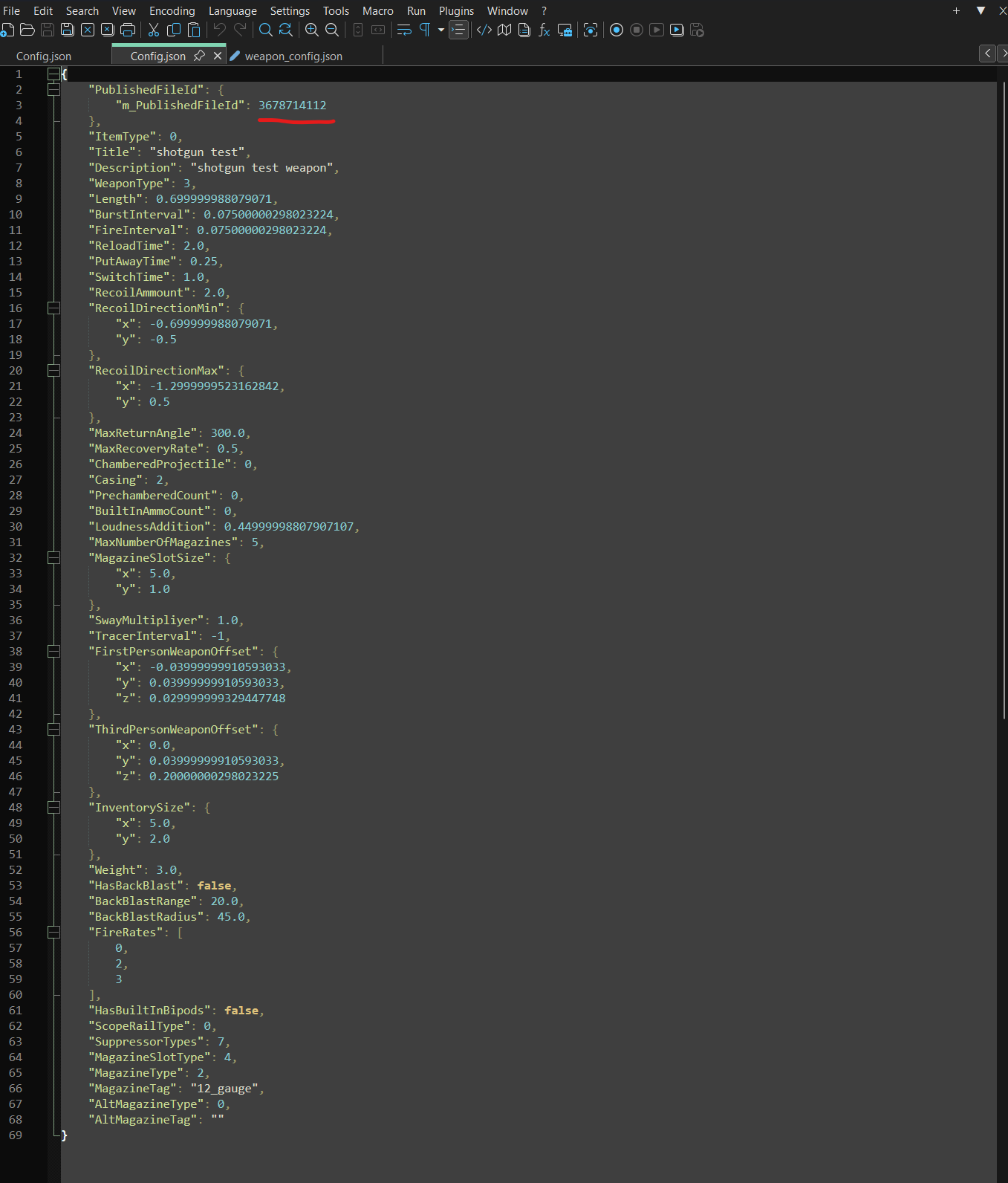
First is by opening the text file in the workshop and editing and saving the file. This is especially useful for adjusting the first person offsets. Start by finding the PublishedFileID. This can be found in the config file you created. Just open it in a text editor. You will find the ID at the top of the file.
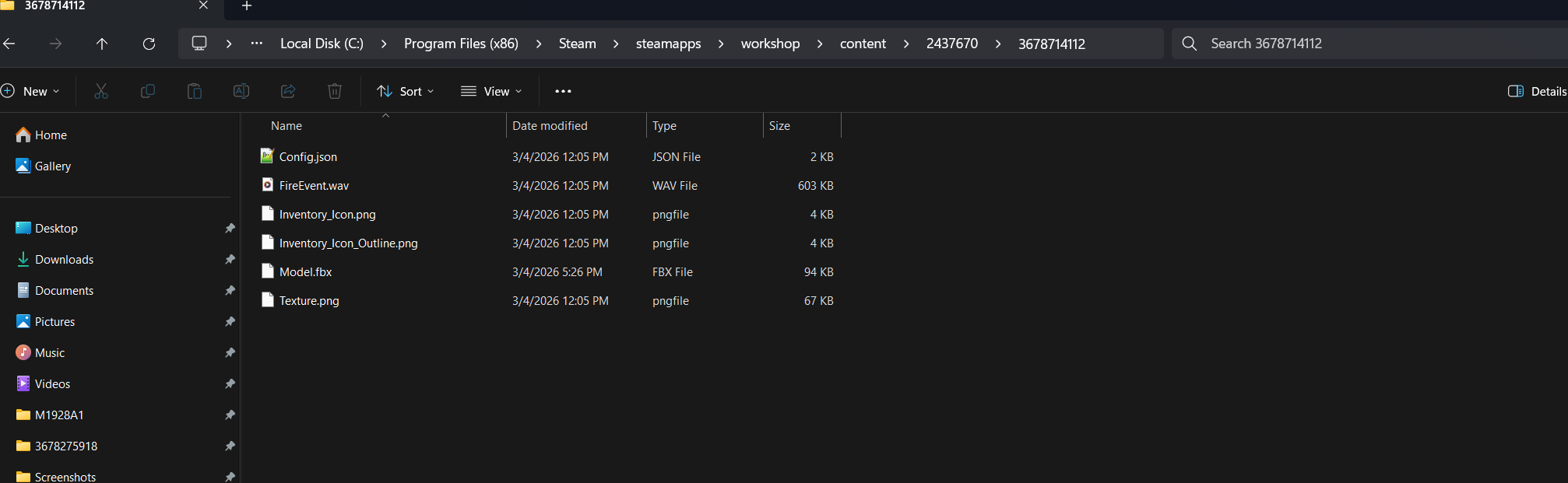
Next find the corresponding file in the workshop files. The path for this weapon would be: “C:\Program Files (x86)\Steam\steamapps\workshop\content\2437670\3678714112”. From there you can open and edit the file. Make sure you save after each edit. Then each time you spawn the weapon it will have the updated config.
Edit the Config Using the In Game Editor
The second way is to browse for the text file as before. However this time you can open it in the UI and make your changes there. Just remember to save the file.
