1: Model Set Up
First open up the 3D program of your choice (recommendations can be found in the main page). The walk through will use Blender however any should be similar.
Open the WeaponModel.blend or import the WeaponModel.fbx file found in the Weapon Template Folder. (Template Link)
You should now see the template and all of the different components found in the Hierarchy view; model, attachment points, toggle points, collision Lets go over what each one does now.
Model
This step is fairly simple. Simply replace the model “M1928A1__WeaponMesh” with one that you create. Just make sure the scale and orientation match the one in the template.

Collision
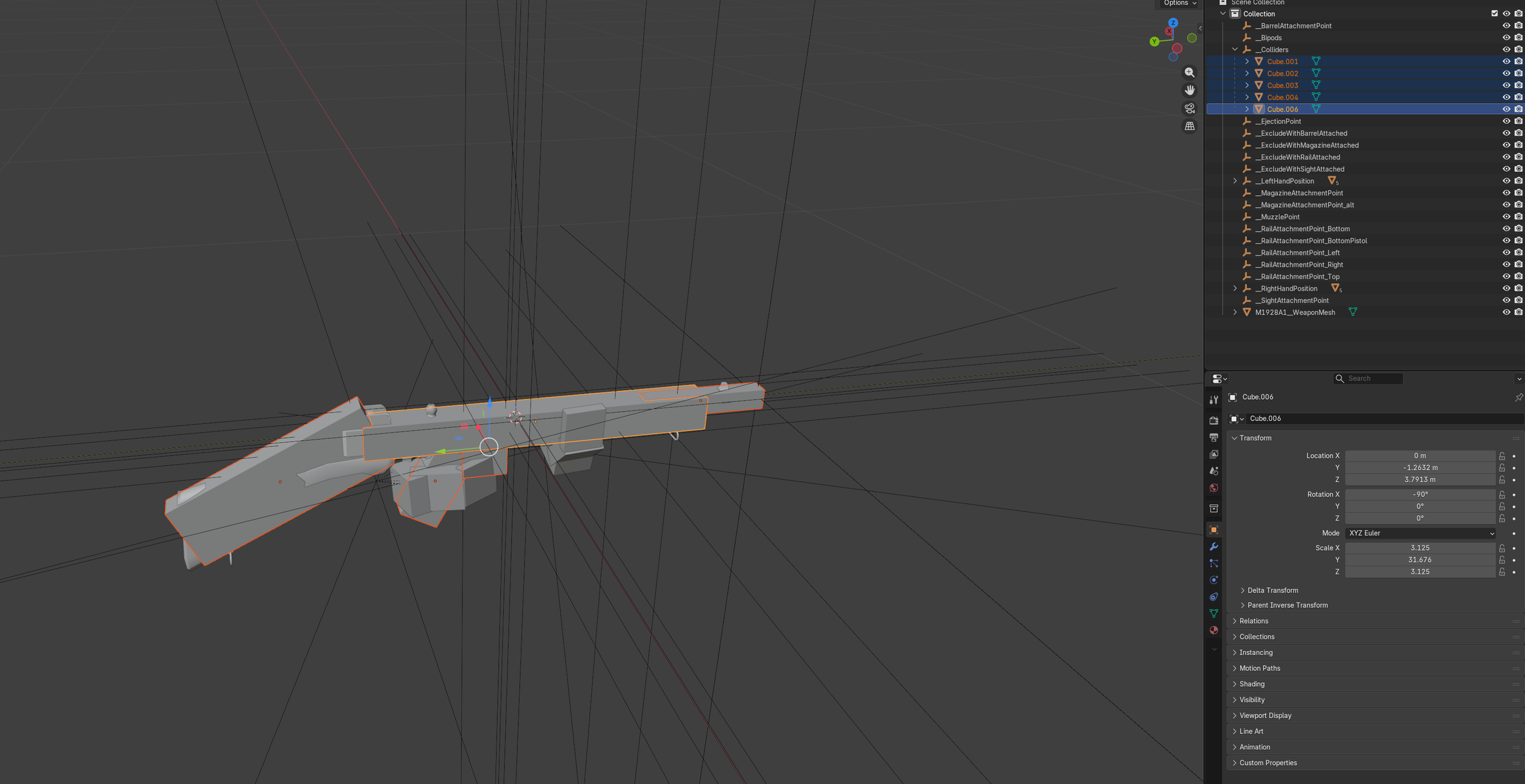
Colliders are used when you drop a weapon on the ground in the game. These do not need to be perfect, just use enough to cover the general shape of the weapon.
The colliders are defined by cubes under the “__Colliders” object. Feel free to reuse the ones in the template or create and delete them as needed. Set them up in a way that makes sense for the weapon you are creating.
Attachment and Reference Points
There are various attachment points on the weapons. These are defined by the “__SightAttachmentPoint” for example. These points tell the game where different attachments should go, where bullets should originate, or where VFX for casings should eject. Some are required and some are optional. It just depends on the reference point and the weapon you are creating.
If you do not need an attachment point, then just delete it from the file.
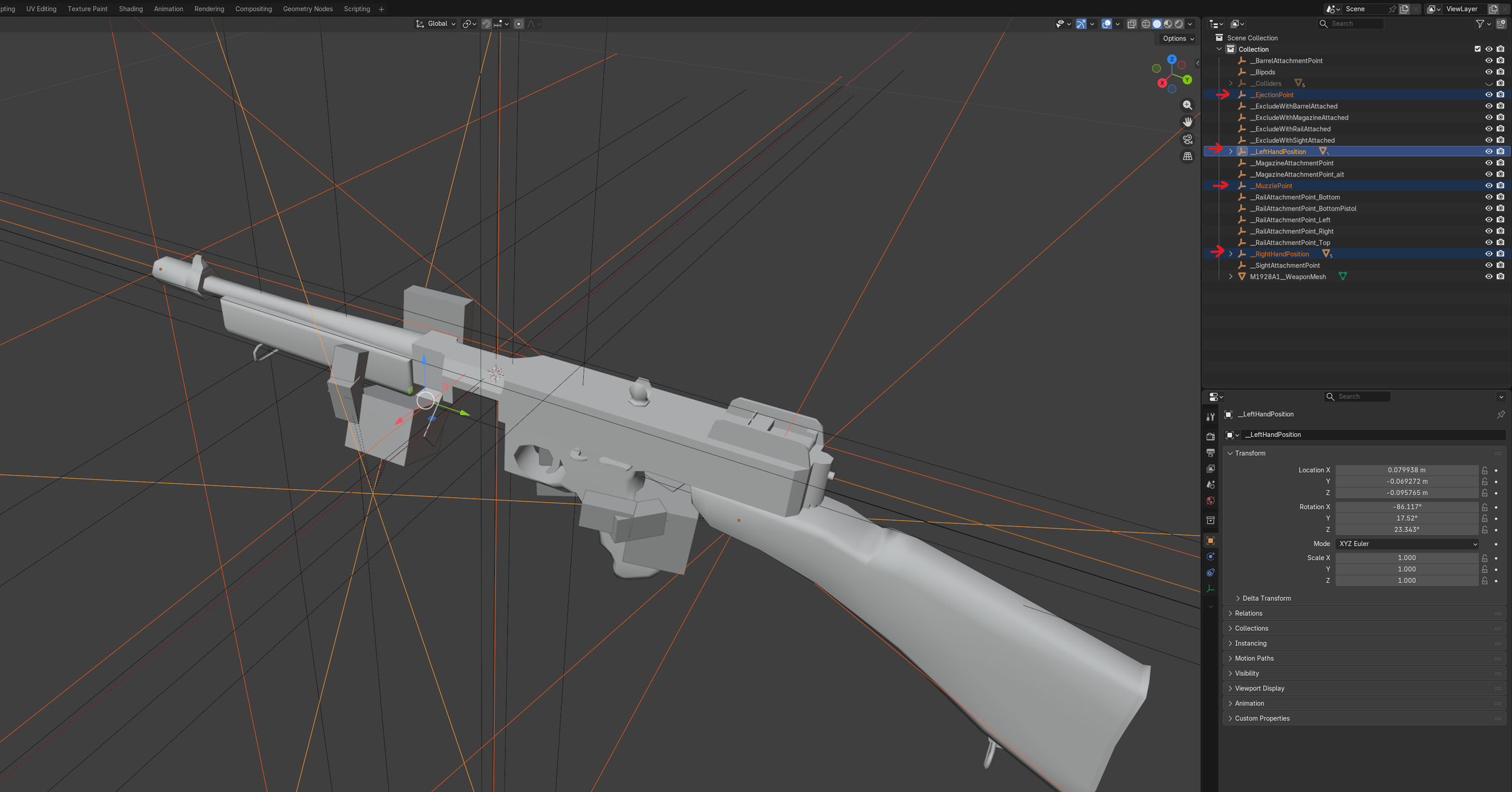
Reference Points (Required)
“__MuzzlePoint” - Where bullets originate from. It’s best to place this at the tip of the barrel.
“__EjectionPoint” - Where casings will eject from. Place this at the ejection port of the weapon if there is one.
“__LeftHandPosition” - Where the character's left hand goes. Remember to delete the placeholders from the point.
“__RightHandPosition” - Where the character's right hand goes. Again, remember to delete the placeholders from the point.
Attachment Points (Optional)
“__BarrelAttachmentPoint” - Used to show where a suppressor would be attached.
“__Bipods” - Place this where bipods attach to the model. Bipods are not an attachment in the game and are part of the existing models. Look at the M249 or M82 for examples of what they look like.
“__MagazineAttachmentPoint” - Where the primary magazine is attached. If you are building something like the Sten, remember to rotate the point 90 Degrees so the magazine attaches in the correct orientation.
“__MagazineAttachmentPoint_alt” - This is only currently used on the M249 so it can accept both a belt box and an M16 magazine. More info on this will be in the config file section.
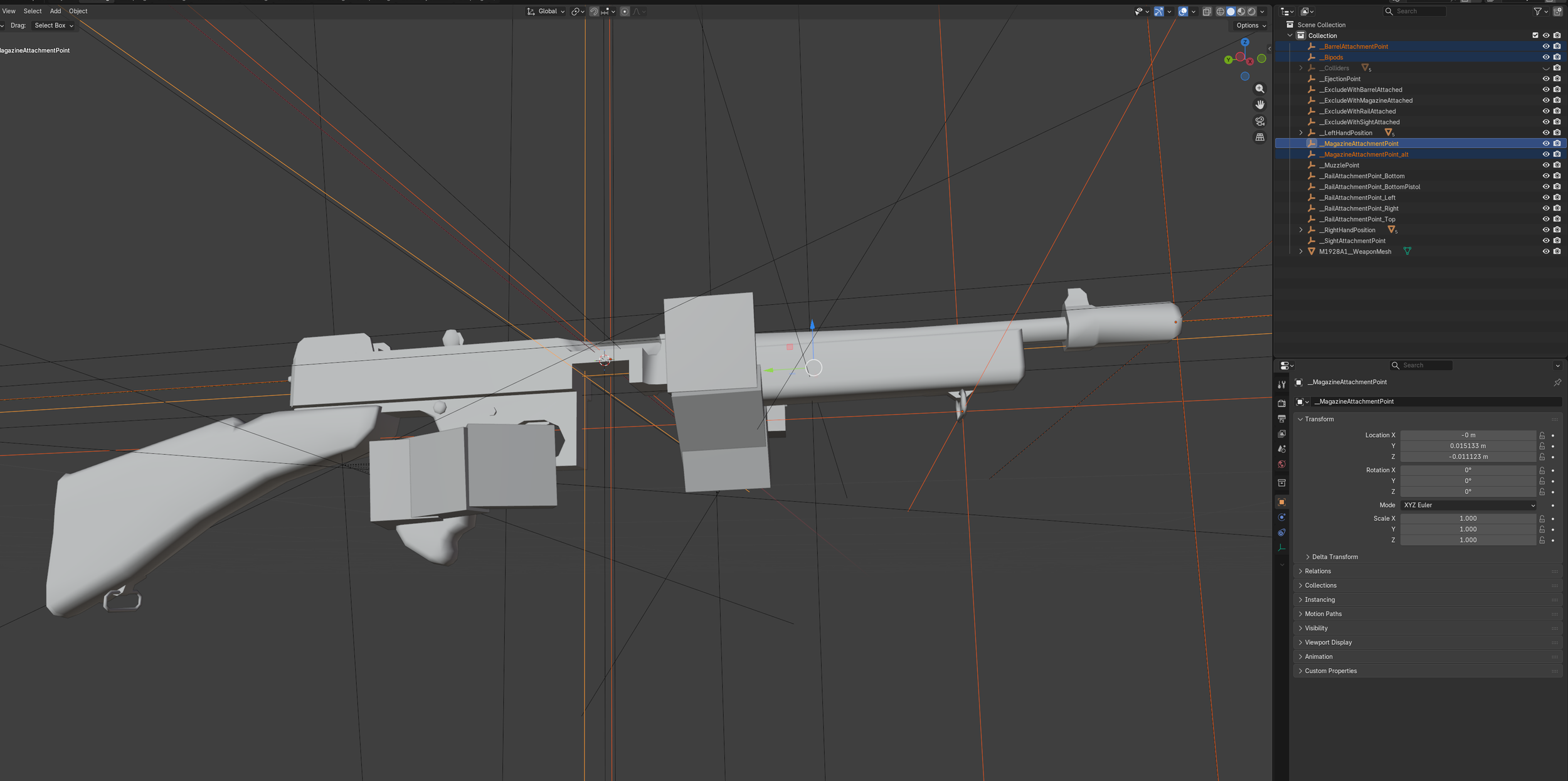
Front Rail Points (Optional)
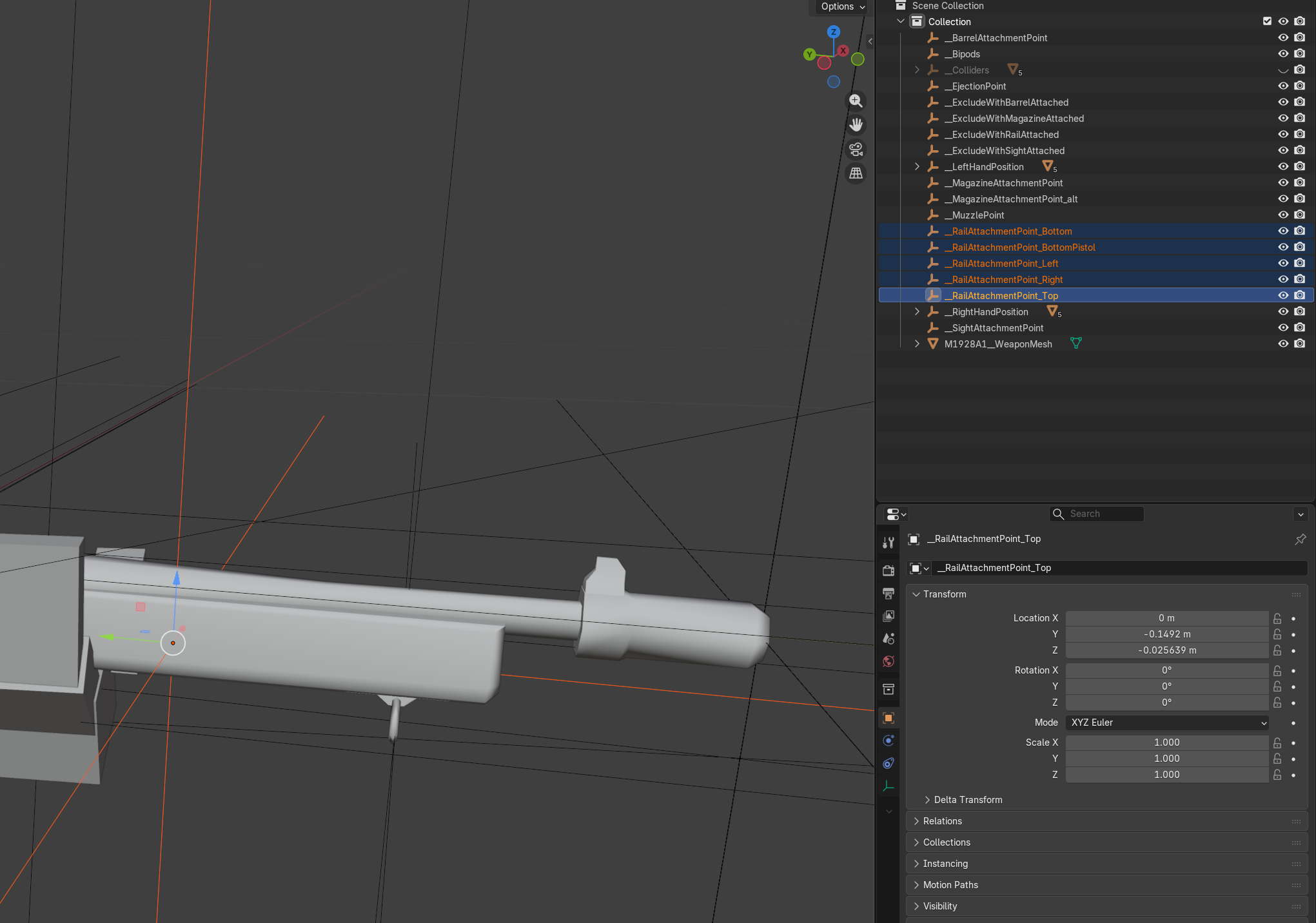
The front rail points are a bit special because they define what sub group of attachments can be placed in addition to the overall type. They also define where the slot shows up in the inventory menu.
“__RailAttachmentPoint_Bottom” - Used to place any attachment, including underbarrel grenade launchers and shotguns.
“__RailAttachmentPoint_BottomPistol” - Used for pistol flash lights. If you are making a pistol, this is probably the only point you need. But there are no restrictions so feel free to do whatever.
“__RailAttachmentPoint_Top” - Top front attachment rail for flashlights and laser sights.
“__RailAttachmentPoint_Left” - Left side front attachment rail for flashlights and laser sights.
“__RailAttachmentPoint_Right” - Right side front attachment rail for flashlights and laser sights.
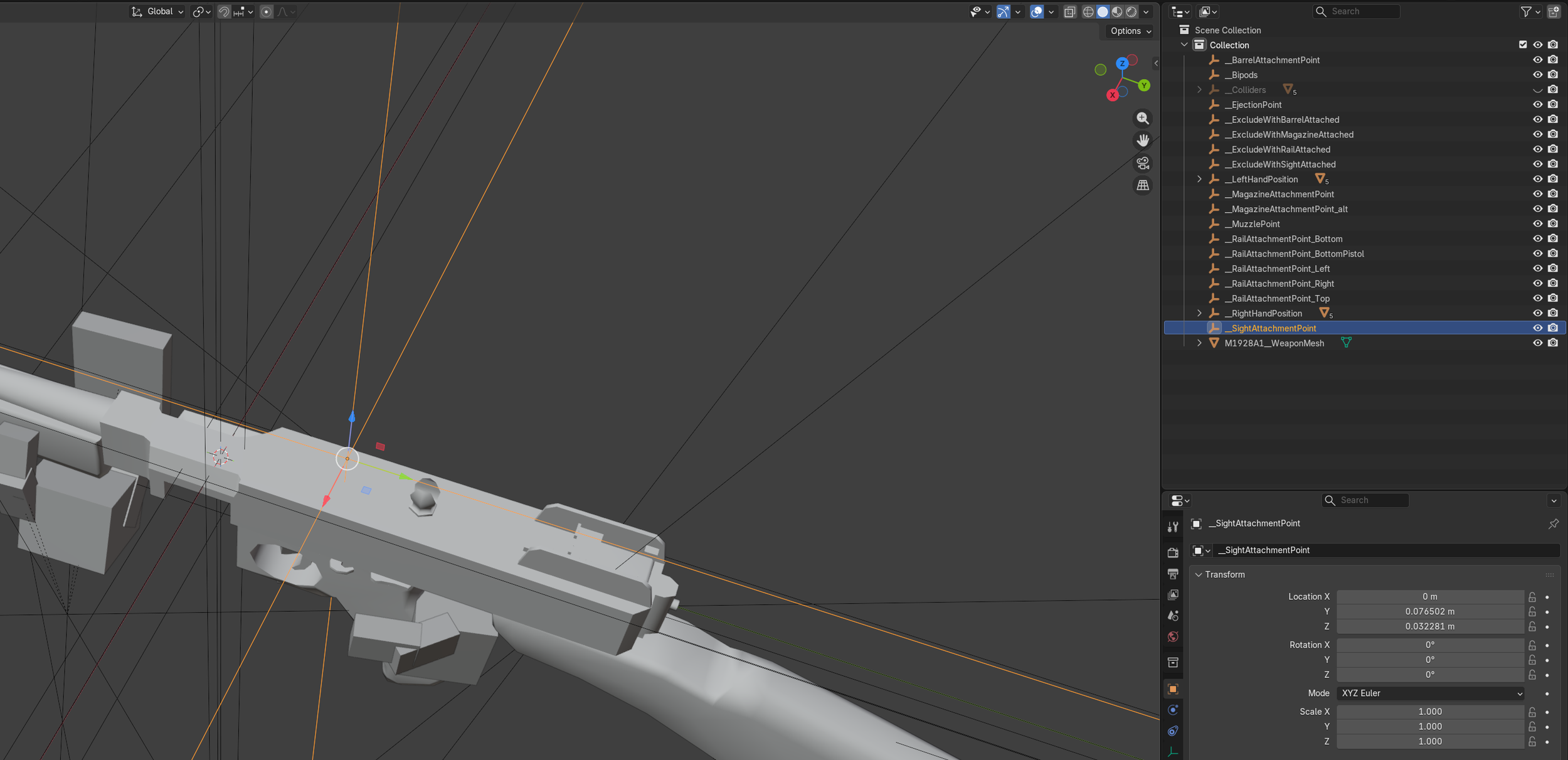
Sight Points (Optional)
“__SightAttachmentPoint” - Shows where a sight should attach. You may need to apply a slight offset if you want to support the side mounted scopes like those found on AK style weapons and the M21/M14.
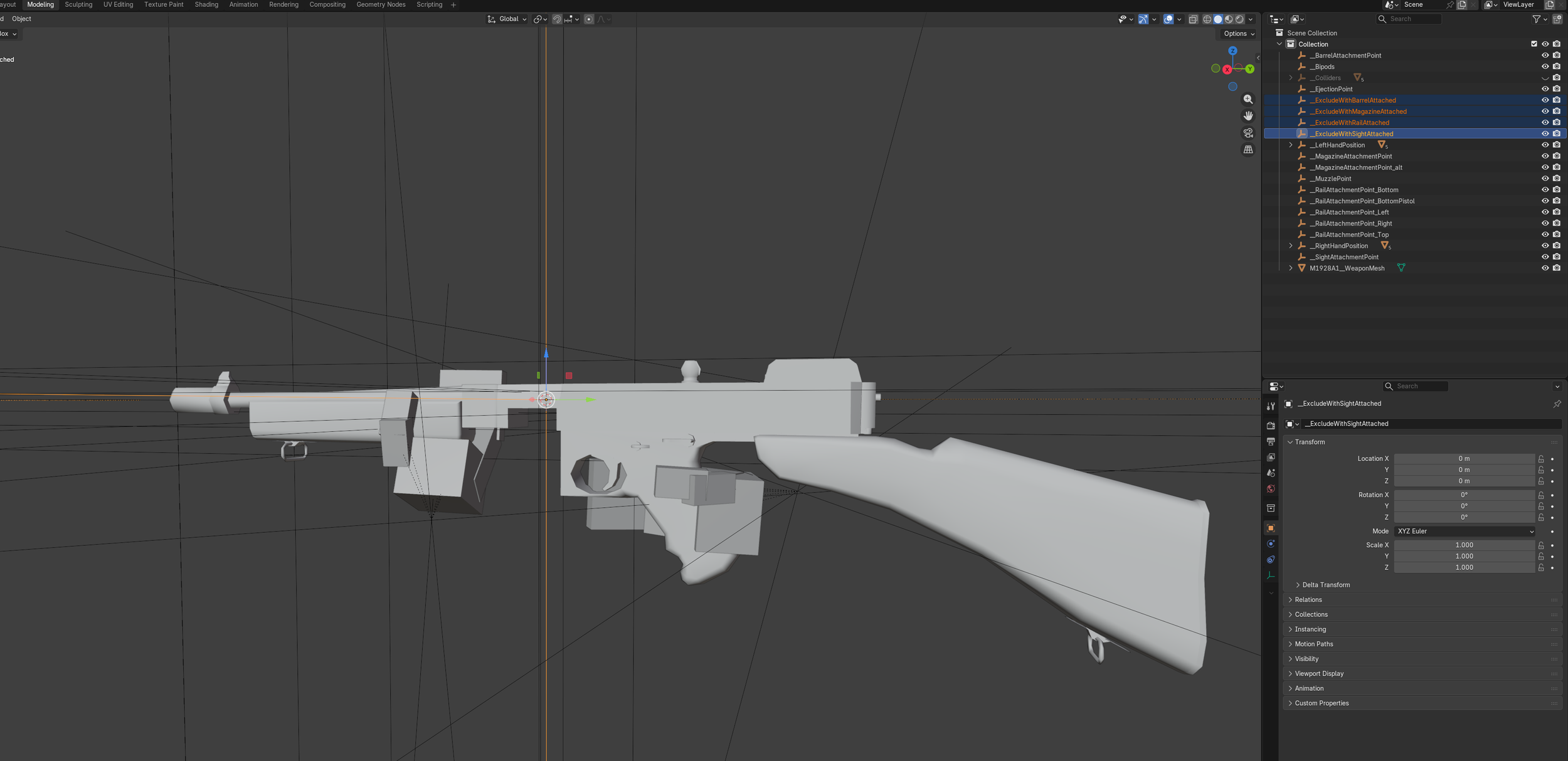
Exclude Points (Required to keep in, but optional to use)
Exclude points tell the game what objects should turn off when something is attached. The Carry handle on the M16 turning off when an ACOG is attached is an example of this working in the game. To set up the same functionality in your custom weapon, separate the carry handle mesh and place it under the “__ExcludeWithSightAttached” reference point.
“__ExcludeWithBarrelAttached” - Disabled when a suppressor is attached.
“__ExcludeWithMagazineAttached” - Disabled when a magazine is attached.
“__ExcludeWithRailAttached” - Disabled when any rail attachment is attached.
“__ExcludeWithSightAttached” - Disabled when any sight is attached.
Textures
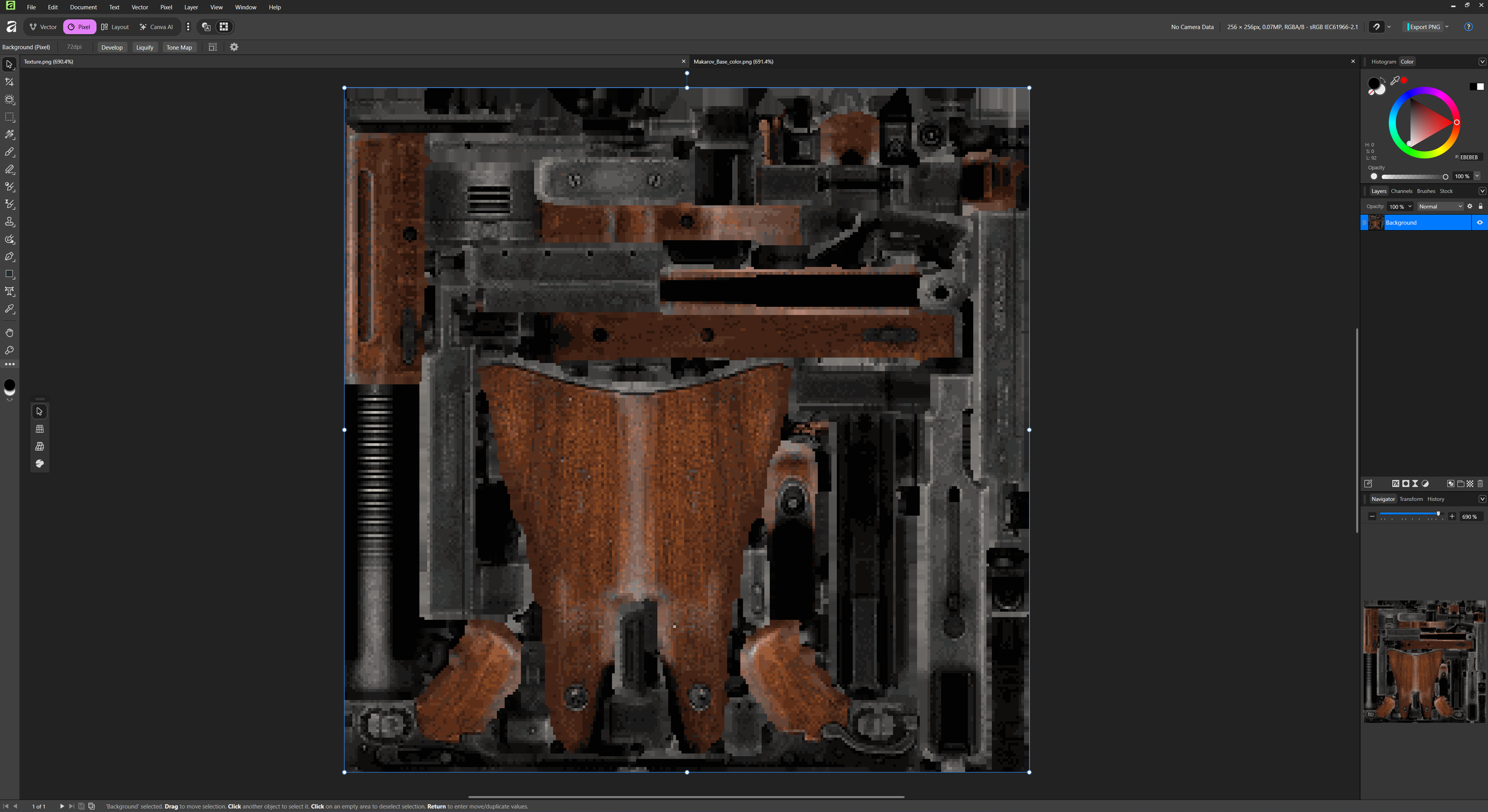
Dagger Directive uses a slightly modified version of the URP SimpleLit shader which has one base color map and one emission map for each item in the game. It does not support multiple materials per model. So everything on your model needs to be on one texture. Mipmaps are disabled and Point Filtering is enabled in game to add to the pixilated look.
Texture sizes vary depending on the weapon size and complexity. Magazines textures are usually inside the weapon texture too but you are not required to do this.
Here are some examples of what we’re using:
1911 - 256 x 256
M16A4 - 256 x 256
PKM - 512 x 512
FGM-148 Javelin - 512 x 512
OICW - 1024 x 1024
Export
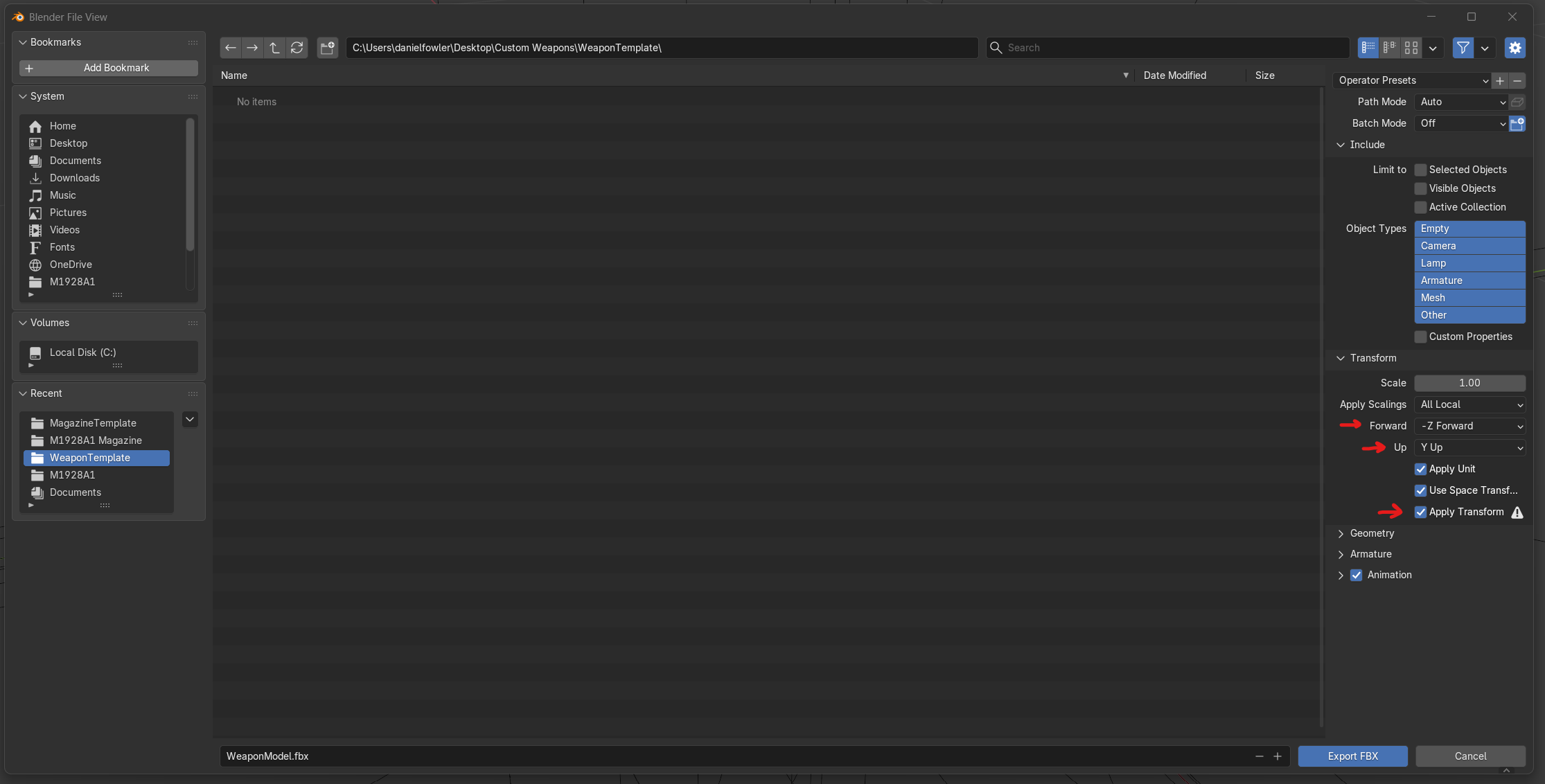
We require a .FBX file so you’ll need to export the model as an FBX. In Maya you do not need to change any settings as Maya and Unity share the same axis and rotations. Blender needs a couple of extra settings though.
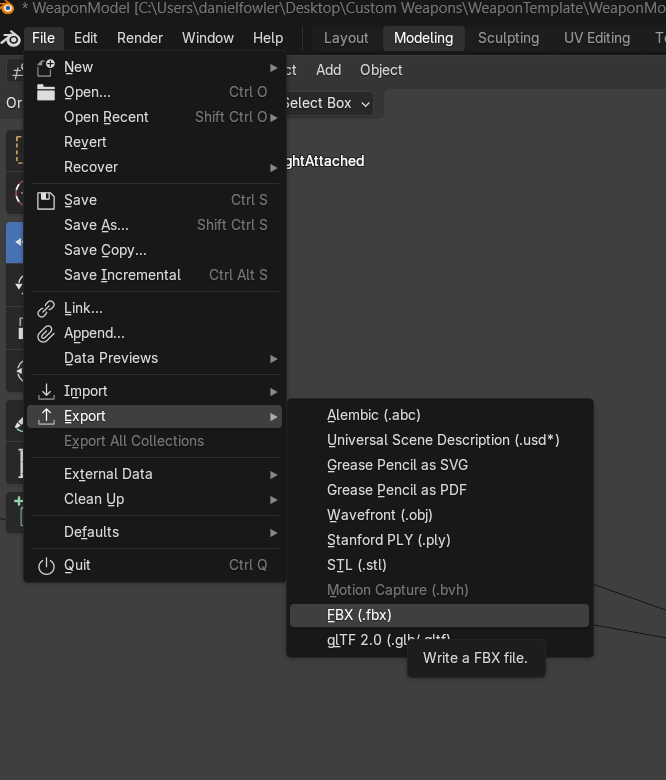
Open the Export FBX window.
Set Forward to “-Z Forward”
Set Up to “Y Up”
Check the box that says “Apply Transform”
Name the file.
Click “Export FBX”