2: Icons
The icons are just the visual representation of the weapon inside the player’s inventory. There are two Icons to create but one is just an outline of the other. The size of the icon depends on the size of the weapon.
Choose A Size
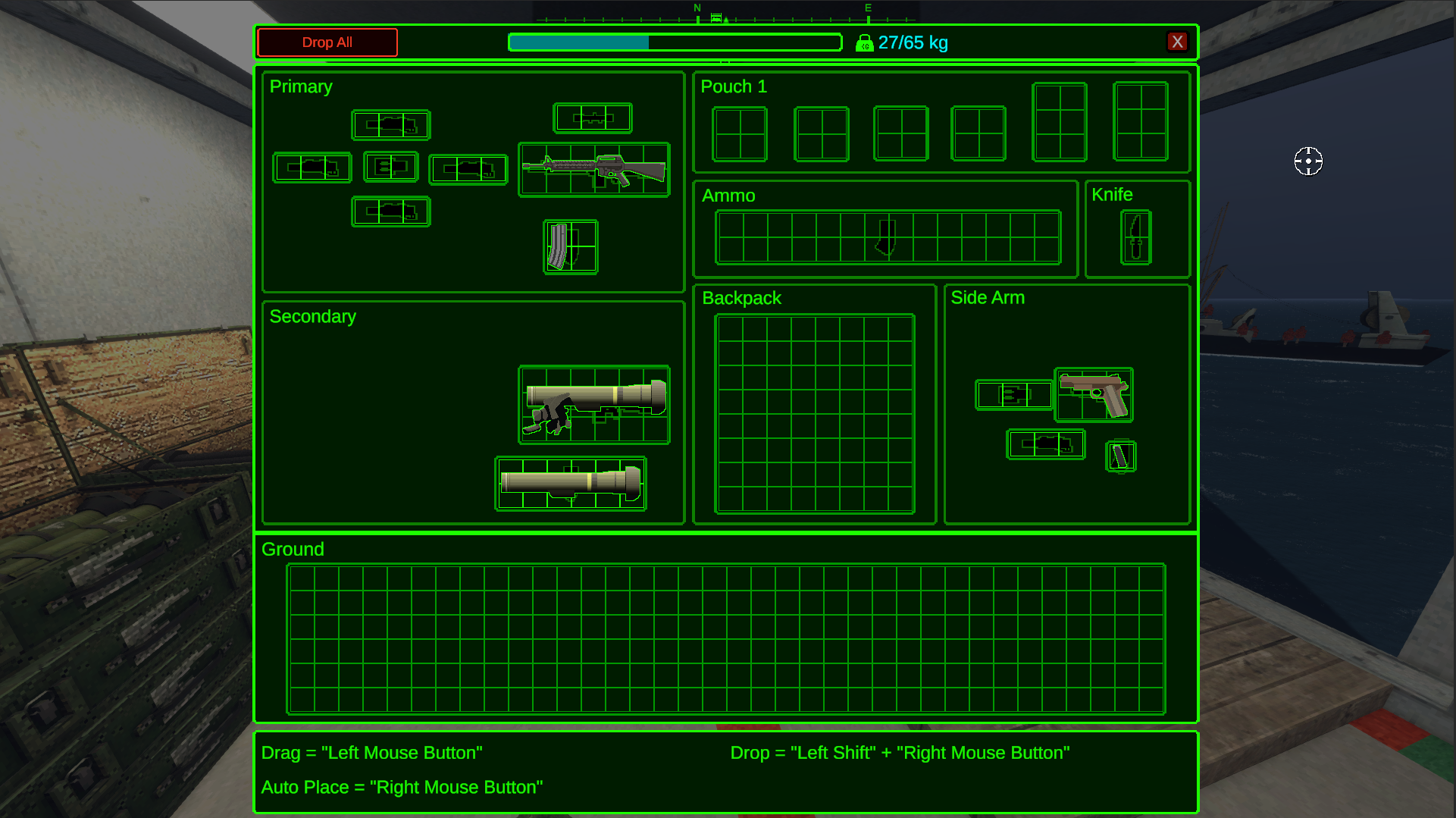
First decide what size the weapon will be in terms of the grid sizes. Pistols are restricted to 3x2, rifles in the primary slot to 6x2, and weapons in the secondary slot to 6x3. You can look at other weapons in the game to decide what size you want to use.
Next open up your image editing software of choice. We’ll use Affinity for this guide but feel free to use any that can export .png files. More options can be found on the Overview page.
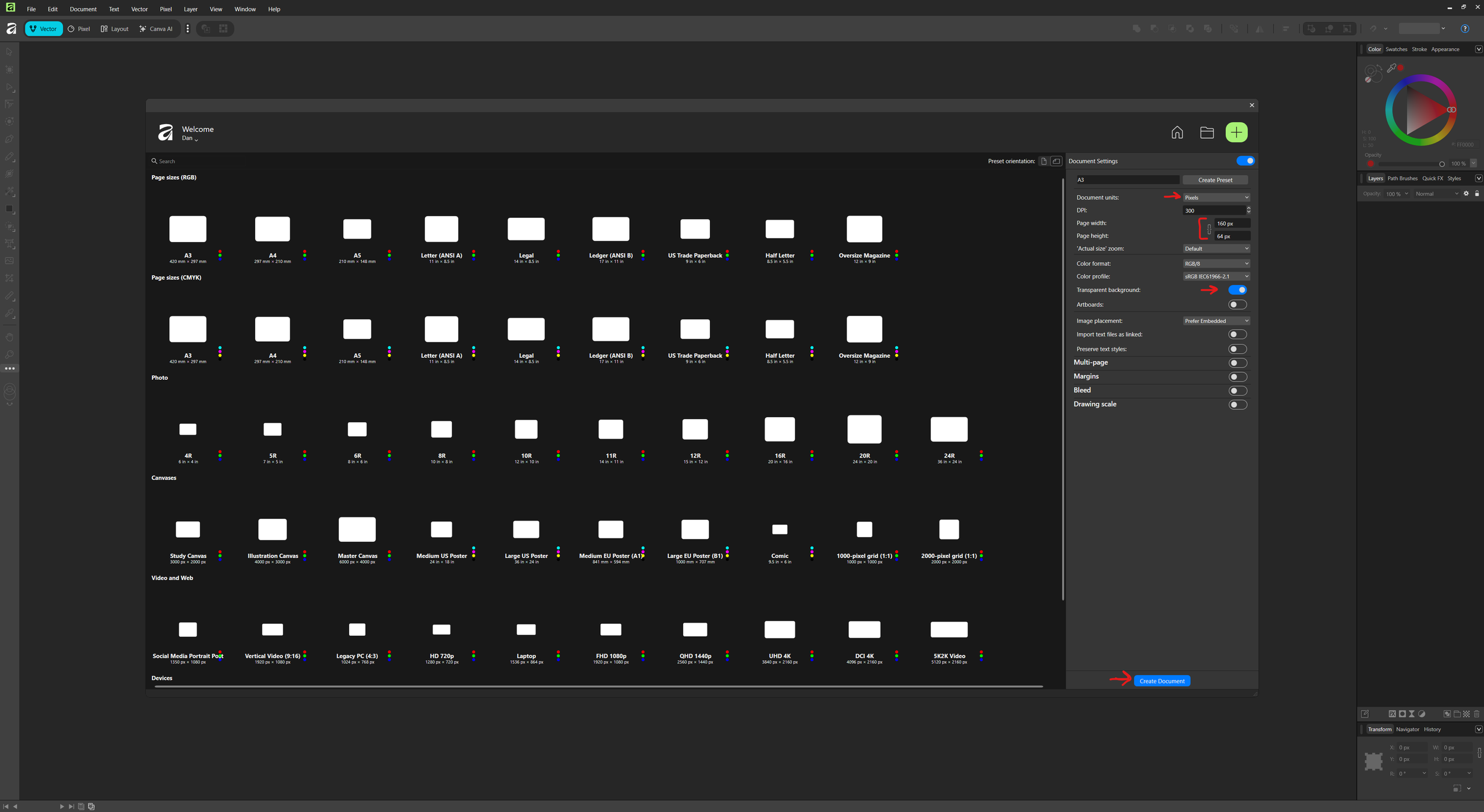
Each grid square in the inventory is 32 pixels in size. If you choose a pistol that is 3 x 2 squares you’ll want to create an image that is 96 x 64 pixels. Here we’re creating an icon for the Thompson and have chosen 5 x 2. So we’ll create an image that is 160 x 64 pixels. * Make sure the background type is set to transparent.
Then draw out your weapons icon. Make sure to leave a few pixels on each side to have room to add the outline later.
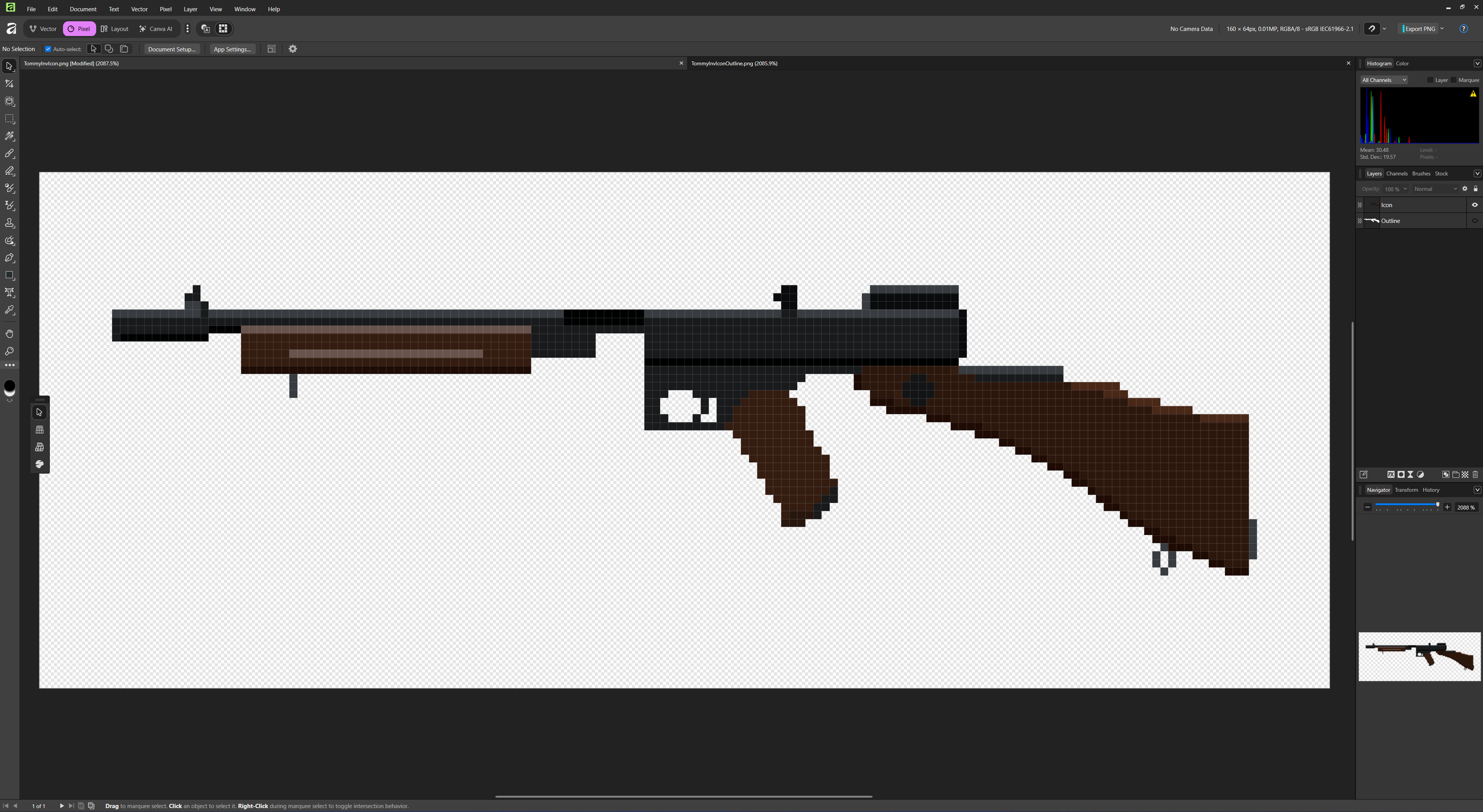
Next we’ll create the outline. Just create a new layer and draw in white around the edges. Then fill it in.
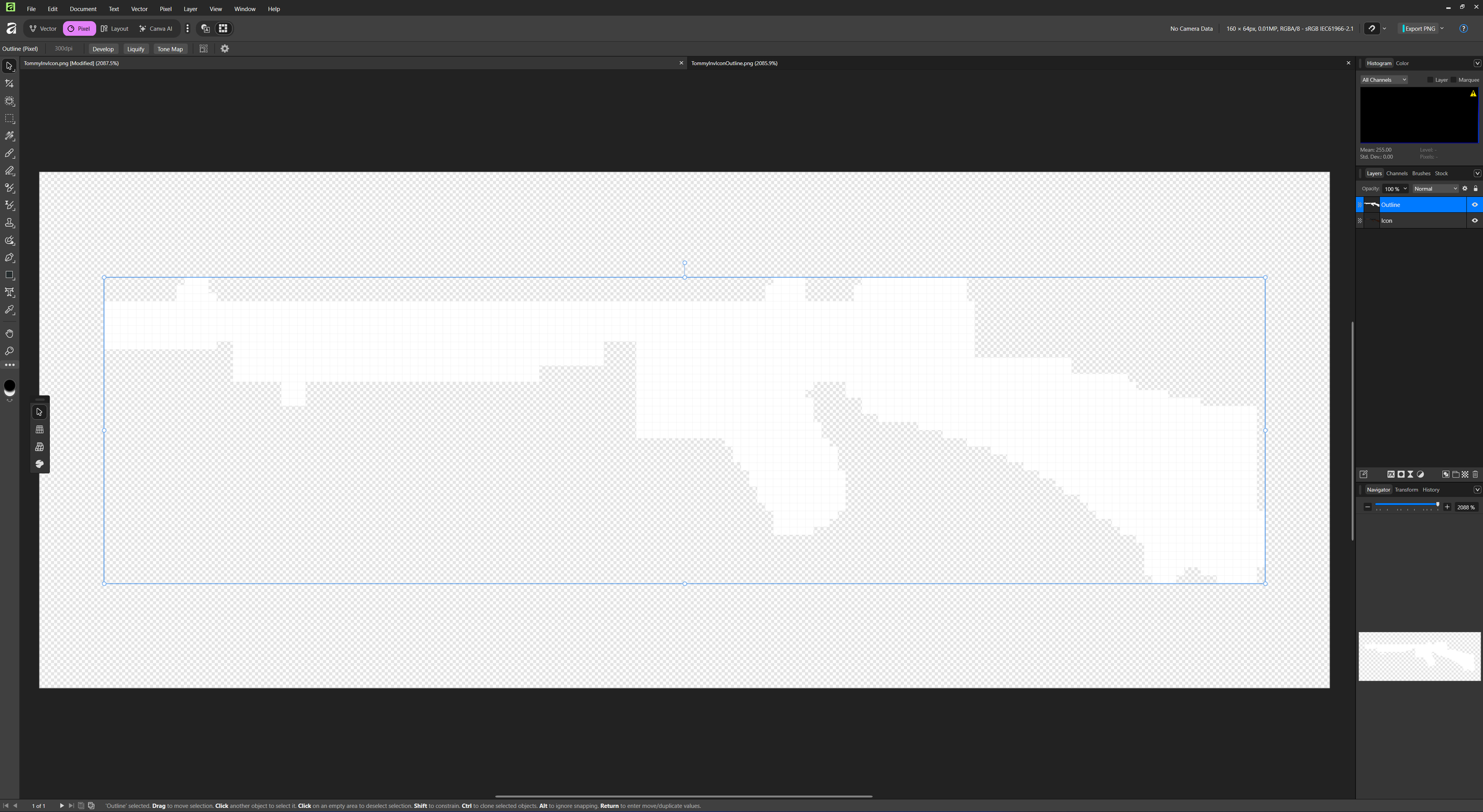
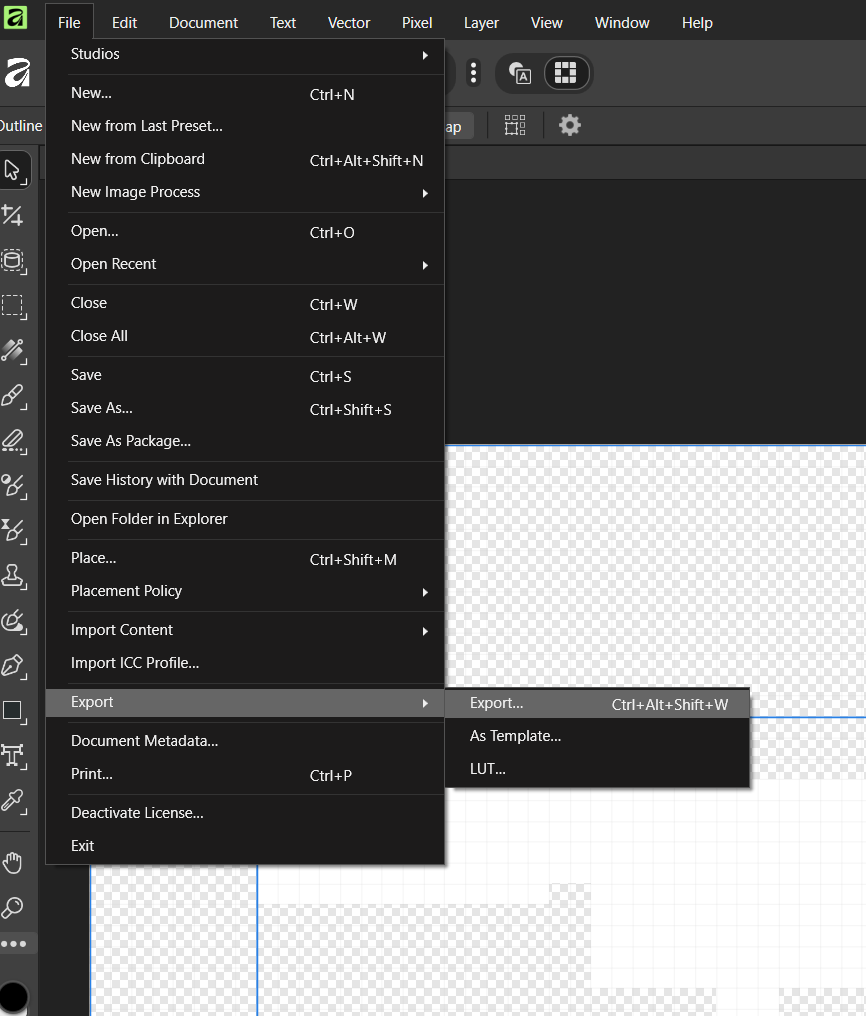
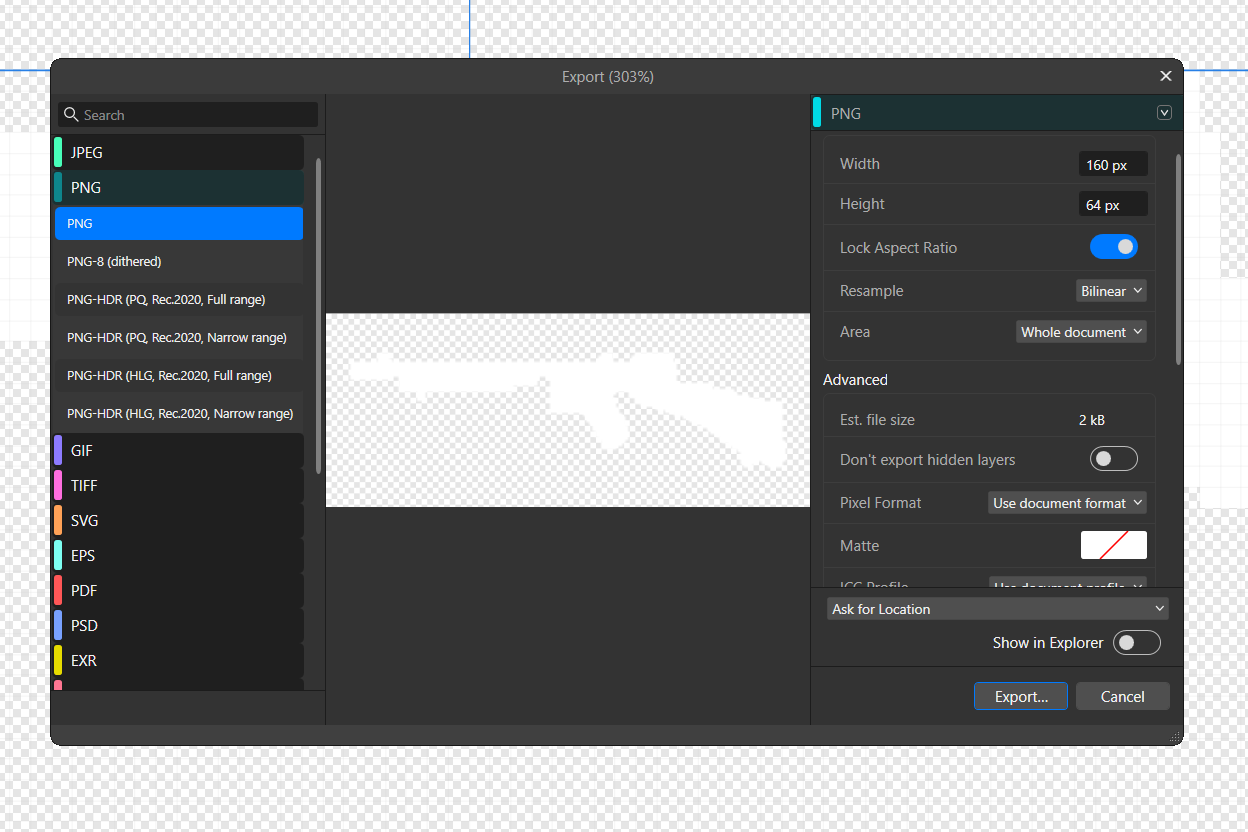
Finally export the icon and outline separately as PNG files.