
5: Upload or Update
Upload
To upload a magazine, head back to the armory in the game. Go to the Custom Weapon Table. Select “Upload Item” and make sure you have the “Magazine” type selected.
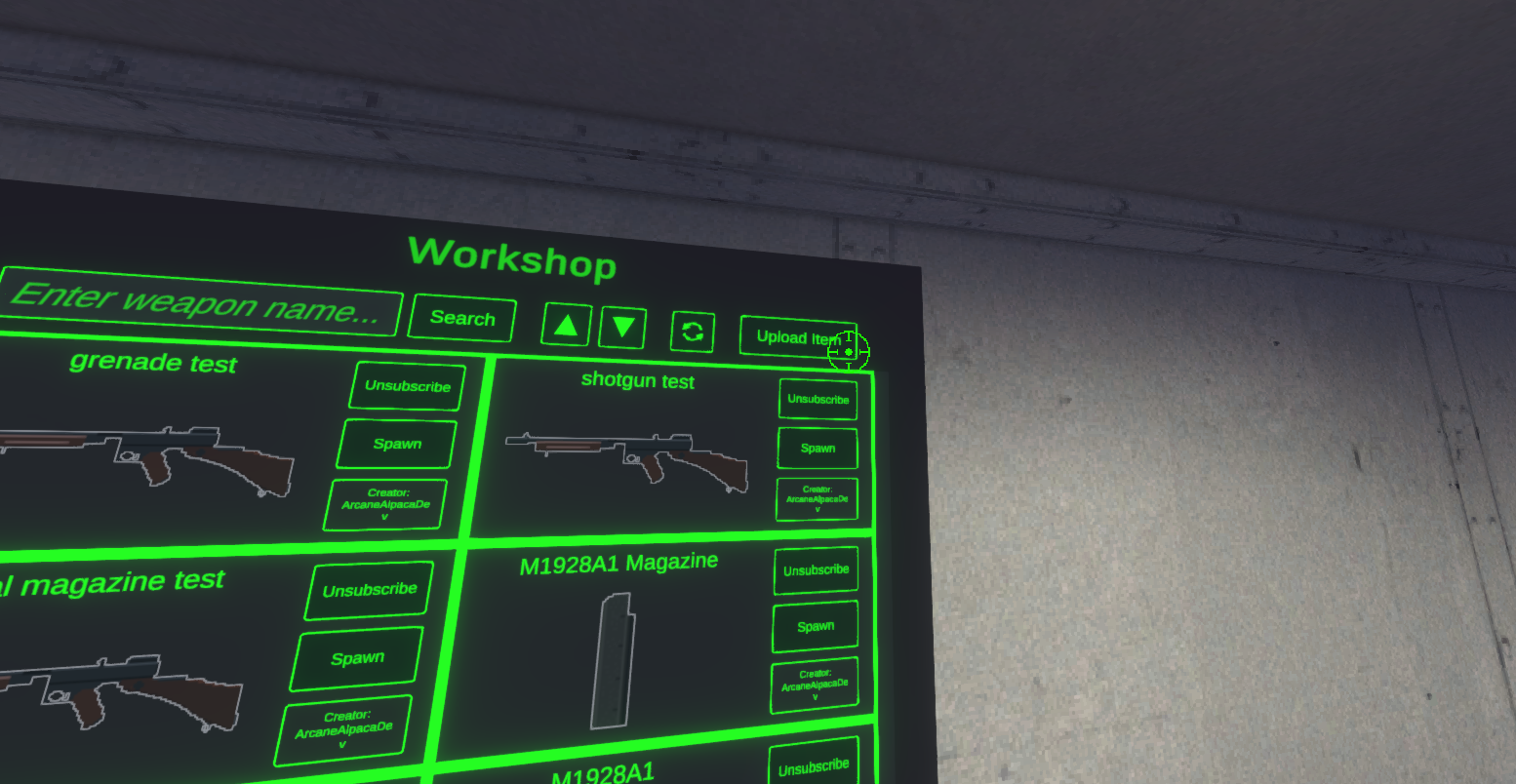
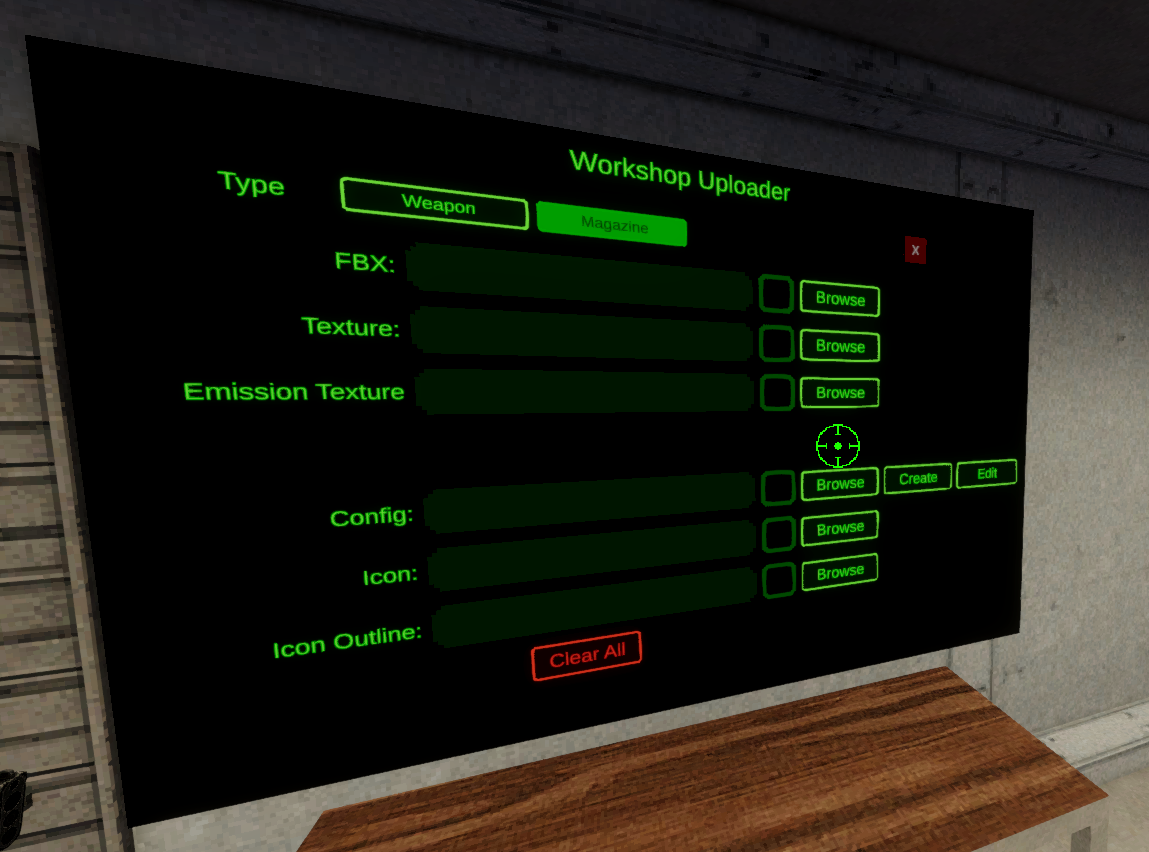
Go down the list of assets and click “Browse” next to each one. Select the appropriate file for each.
FBX - Select the .fbx model file.
Texture - Select the magazine models texture.
Emission Texture - Select the magazine models emission texture if you have one. This is not required and should only be used if you need it.
Config - Select the config file you just created in the previous step.
Icon - Select the inventory icon .png file.
Icon Outline - Select the inventory outline image .png file.
If everything is done correctly and the validator did not find any issues, you should now see the upload button!
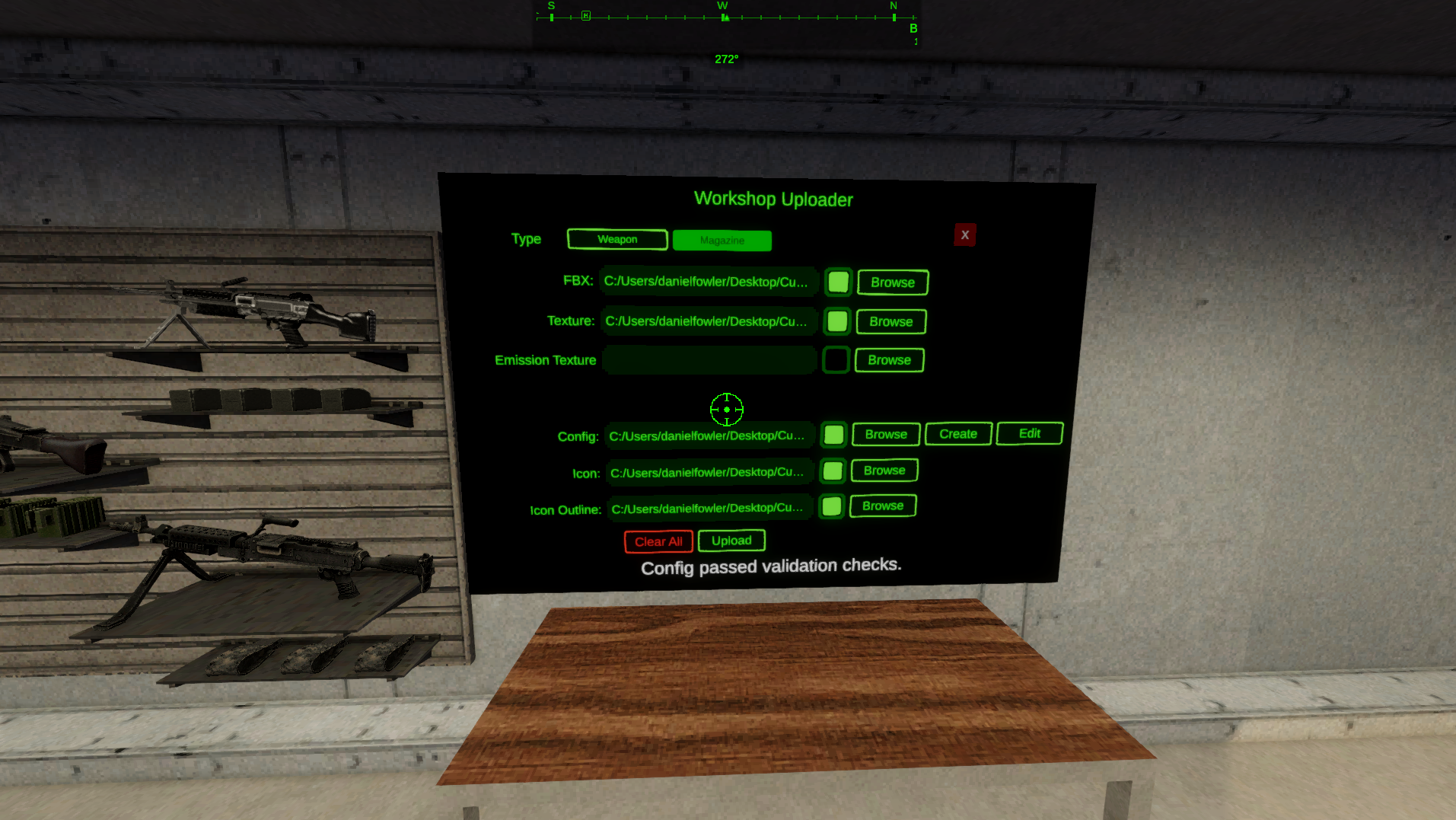
Now click the “Upload” button. You’ll see a new menu where you can set the Title, Visibility, Preview Image, and the description. When Updating you will not be able to edit the description. To edit the description after the initial upload you can use the Workshop page for your item.
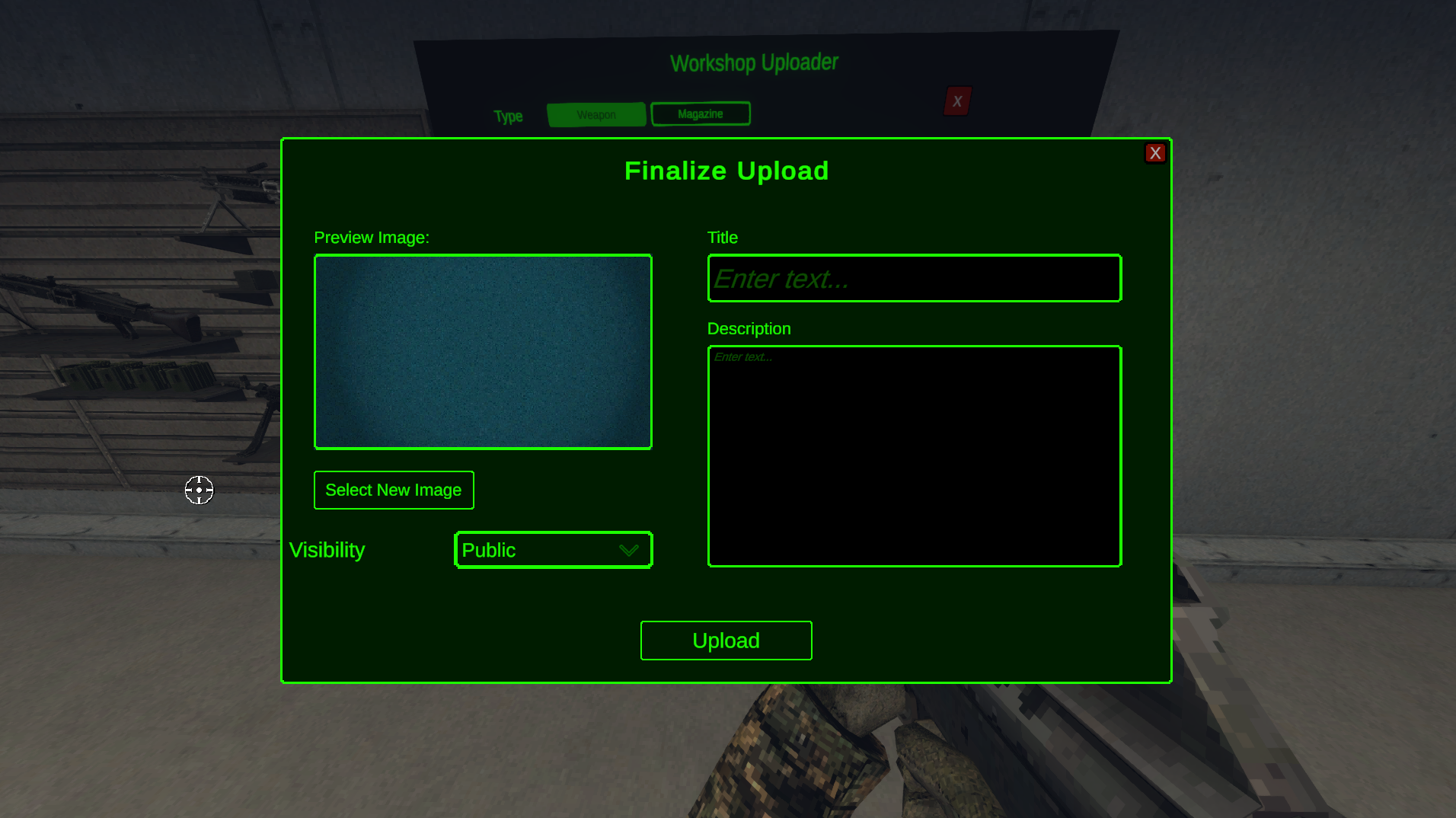
Once everything is set up how you would like you can click “Upload” or “Update” to finish the process. When the upload is complete you should see the “submitted” message and the ID has been saved to the config file. If there are any issues you will see the error displayed.
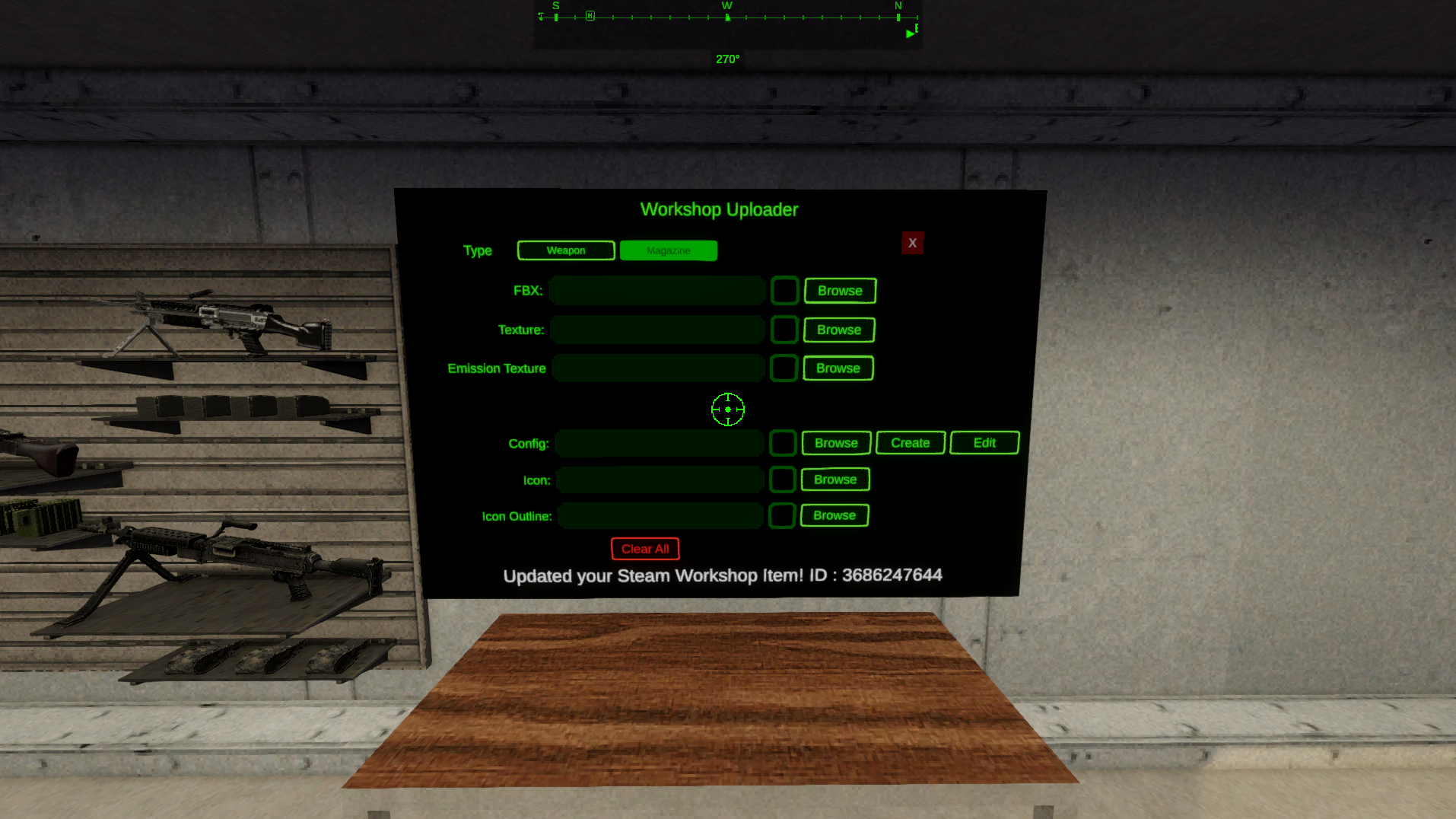
You may not see your item on the Workshop right away. I’ve seen it take up to 15 minutes to show up.
Update a Custom Magazine
The steps are almost the same as the upload. The only difference is that you need to make sure the ID in the config matches the previously uploaded magazine.
The ID gets saved to the config when you initially uploaded it. If you lost that config file, don’t worry, you can find it again by looking
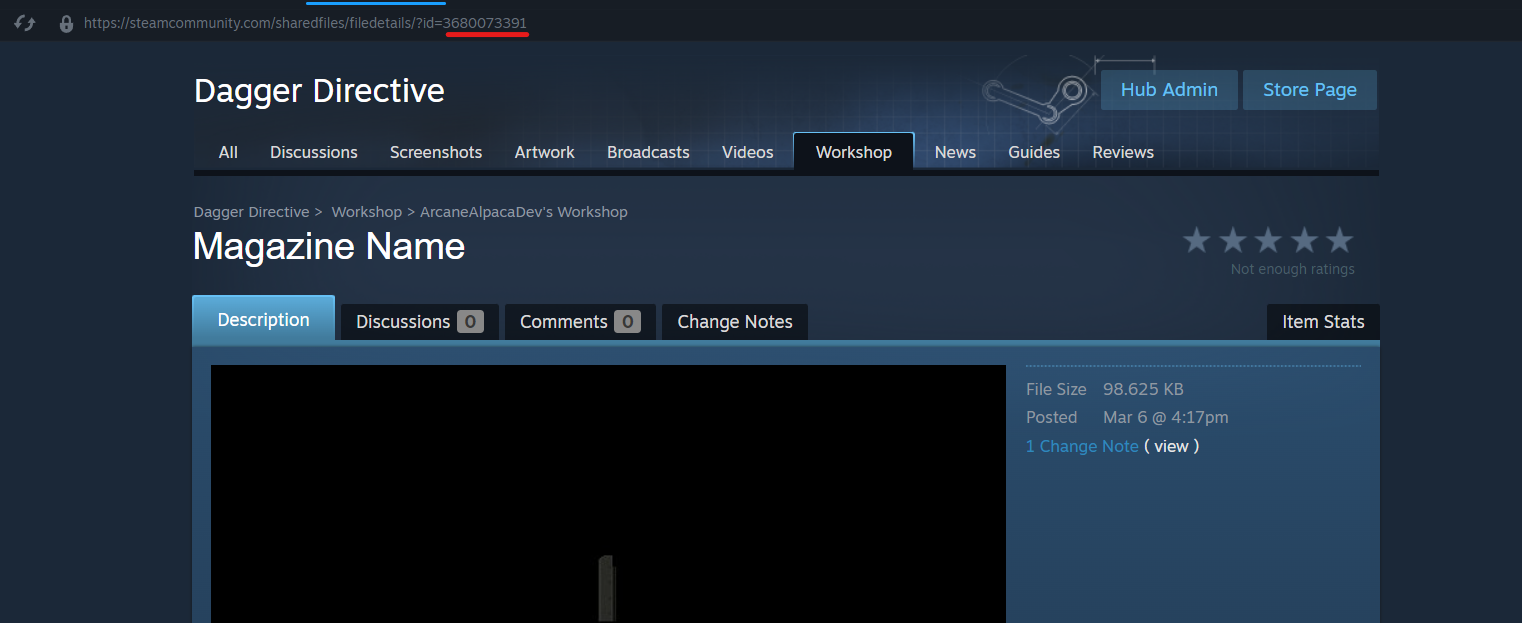
Next enter the ID into your Config File in the “PublishedFileID” field.
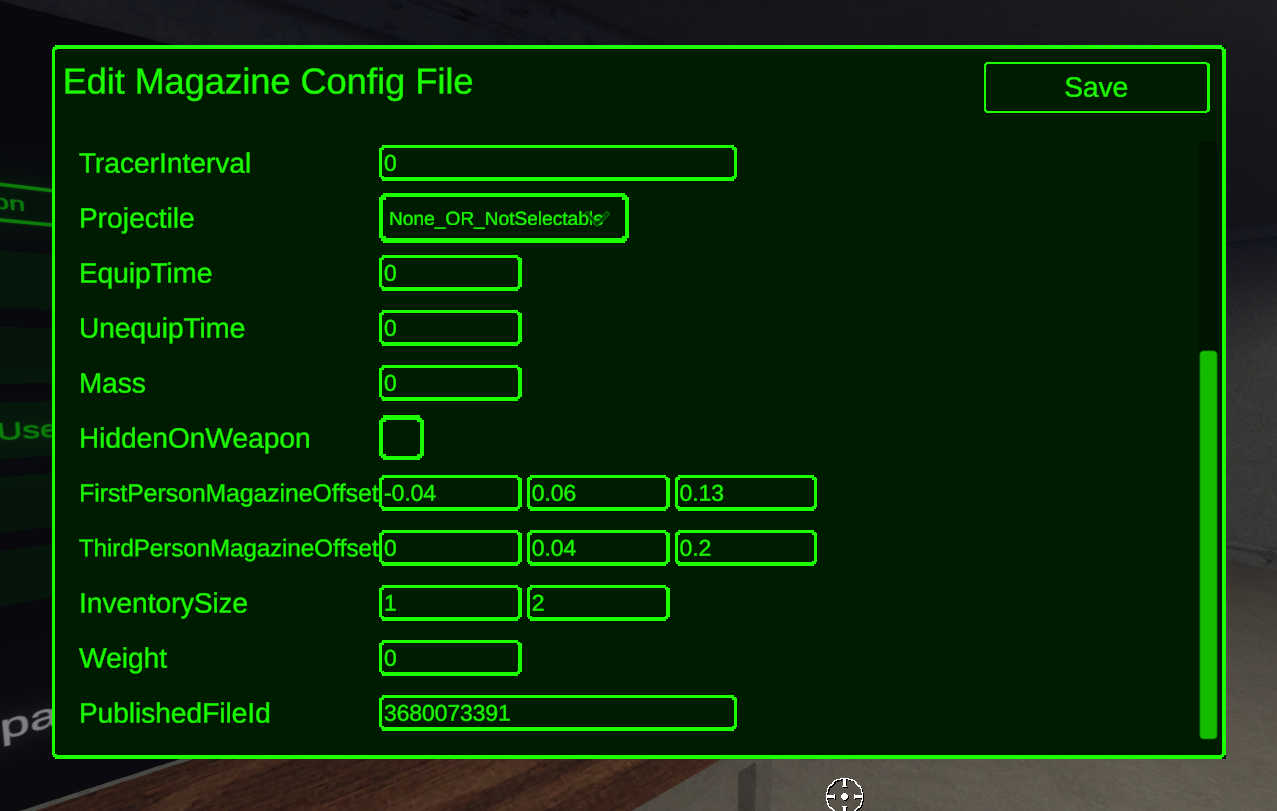
From here the steps to update the Magazine are the same as the Upload process. Make sure you assign all the files to the fields, click “Upload, and then you will see the “Magazine Updated” message.